Intro
You sit down to watch the match, open your IPTV app, and nothing happens. Or the app opens, the channel list loads, and the screen stays black. Few things are more frustrating than IPTV that stops working right when you want to watch something — and the worst part is that the cause is rarely obvious. Is it your internet? Your app? Your subscription? Your provider?
Most IPTV problems are simple and can be fixed in a few minutes. This guide works through the faults in the order to check them, from the quickest checks to the deeper settings. Follow them in order, and stop as soon as the picture comes back.
The short answer
Usually it is one of five things: your internet has dropped or slowed down, your login details are wrong or your subscription has expired, the app cache is corrupted, the app needs an update, or your provider is having a temporary outage. Restart the app, the device and the router, check your internet speed, re-enter your login details, and clear the app cache — those four steps fix most problems.
First, work out what is actually broken
Before you change anything, work out exactly what is failing. If the app will not open, the problem is the app or the device. If the app opens but your login is rejected, the problem is your details, your subscription, or the login server. If the channel list loads but a channel shows a black screen, the problem is usually the connection or the stream. If everything works except the programme guide is blank, the problem is the EPG data. And if it works on one device but not another, the problem is on the failing device.
Note any error message word for word — support will ask for it first.
1. Check your internet connection
IPTV is live television over the internet, so it is only as reliable as your connection. A connection fine for browsing can still be too slow for a live 4K stream. Run a speed test on the same device, or on your phone next to the TV: for smooth HD you want at least 10 Mbps, and for 4K around 25 Mbps. Stability matters more than speed — if the test speed jumps around, your connection is dropping data, and that is what causes channels to freeze. If nothing else in the house can get online either, the problem is your broadband, not your IPTV.
2. Restart the app, the device and the router
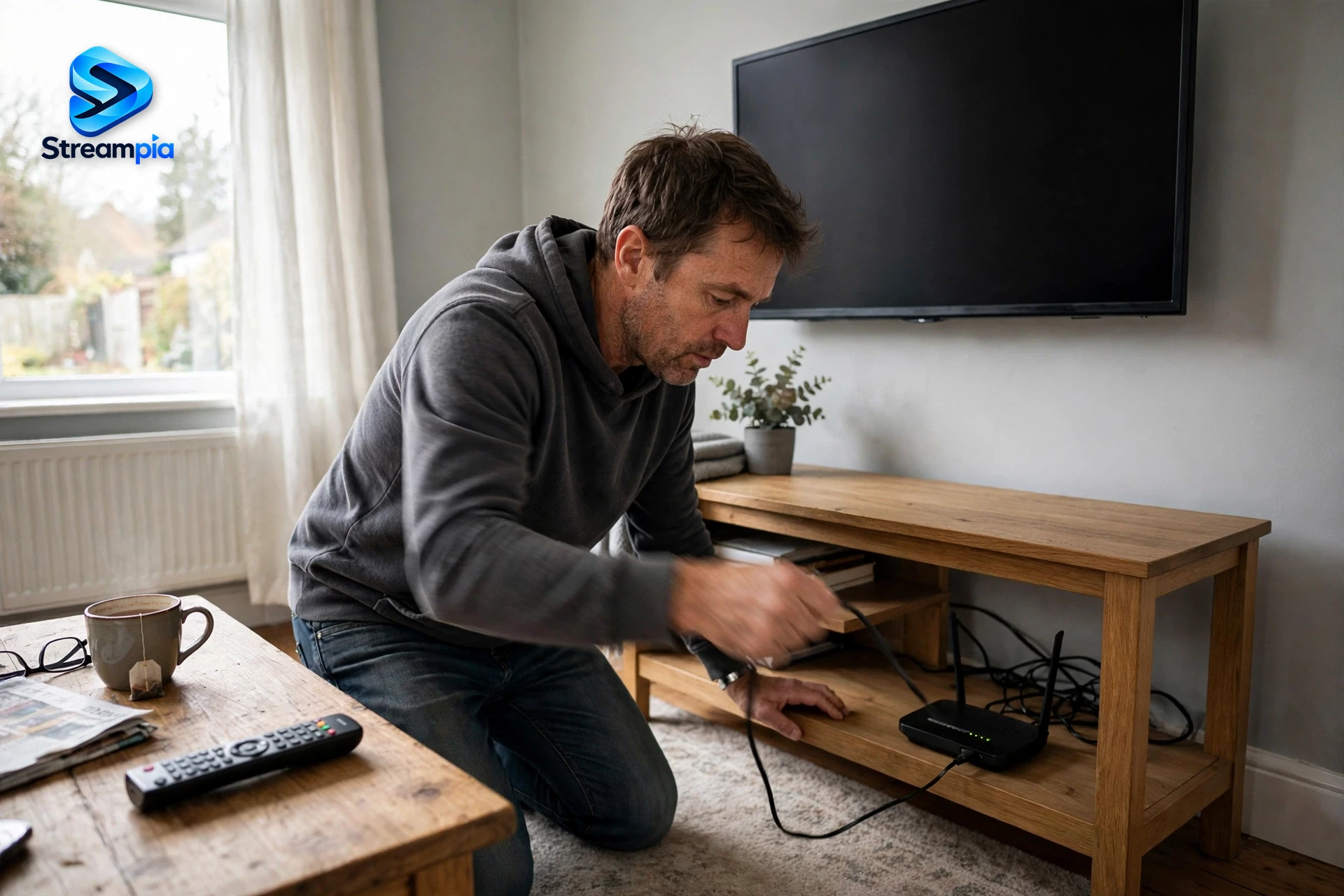
A restart is the single most effective fix in this guide. Close the IPTV app completely — force close it, not just back to the home screen — then restart the device itself. On a Firestick, hold Select and Play/Pause together for five seconds, or go to Settings, then My Fire TV, then Restart. If your Firestick is generally sluggish as well, our guide to a Firestick running slow walks through the deeper fixes. If it still does not work, restart the router too: unplug it for thirty seconds, plug it back in, and wait two minutes.
3. Check your login details carefully
Login failures are one of the most common IPTV problems, and most of them are typing mistakes — a single wrong character in a long username, password or server address is enough to lock you out. If your app uses Xtream Codes, check the server address, username and password. Copy and paste them from the details your provider sent you, and watch out for the usual traps: a capital O typed as a zero, a lowercase l as a number one, and a space added when you paste. Our IPTV Smarters Pro setup guide shows exactly where each detail goes. Also check you are not logged in on too many devices at once — most plans allow one connection, so if it is already playing on another TV, a second login can be refused.
4. Check your subscription is still active
If your login details are right and it still will not let you in, check whether your subscription is still active. A 1-month plan bought on the 5th ends on the 5th of the next month, not at the end of it, and if it has expired the login will simply stop working, usually with no warning. Streampia plans run for 1, 3, 6 or 12 months, from £11.99 for one month to £95.99 for a full year, with the 3-month plan at £29.99 and the 6-month plan at £63.99. Renew on our pricing page, or contact us on WhatsApp via streampia.com and we can check your plan.
5. Clear the app cache
If the app opens and your login works but channels will not load, or the app behaves strangely — menus half-loading, artwork missing — the app cache is a likely culprit. The cache is temporary data stored to load faster, and when corrupted it does the opposite. On a Firestick, go to Settings, then Applications, then Manage Installed Applications, pick your IPTV player, and select Clear Cache — this deletes only temporary files, not your login or settings. On Android TV, it is under Settings, then Apps, then your player app, then Storage. Clear the cache, force close the app, and open it again.
6. Update or reinstall the app
An old version of your player app can stop working when the service it connects to changes something, so check for updates in the Amazon Appstore, Google Play Store or your device's app store. If there is no update, or updating does not help, reinstall the app completely: uninstall it, restart the device, then install it fresh and enter your login details again. A fresh install removes corrupted files the cache clear cannot reach, and it is also the fix when the app itself crashes on launch or freezes on the channel list. Save your login details before you uninstall.
7. Try a different player app
If you have tried everything above, the next question is whether the problem is the app or the service. Try a different player app with the same login details. Our guide to the best IPTV apps compares the main players — IPTV Smarters Pro, TiviMate, IBO Player and GSE Smart IPTV among them. Install a second app, enter the same details, and see if the channels play. If they do, your original app is the problem. If the new app fails in exactly the same way, the problem is the connection, the account, or the service itself. "It fails in two different apps" is also useful evidence for support.
8. Check for a VPN or ISP block
Some internet providers block or slow down IPTV traffic, especially during big live events. If your IPTV works most of the time but fails every Saturday afternoon, or works on mobile data but not on home broadband, your provider may be interfering. A VPN can help, because it hides what kind of traffic you are sending — connect to a UK server and try again. But a VPN can also be the problem: if you are already using one, try turning it off. Test one change at a time.
9. Fix a blank programme guide (EPG)
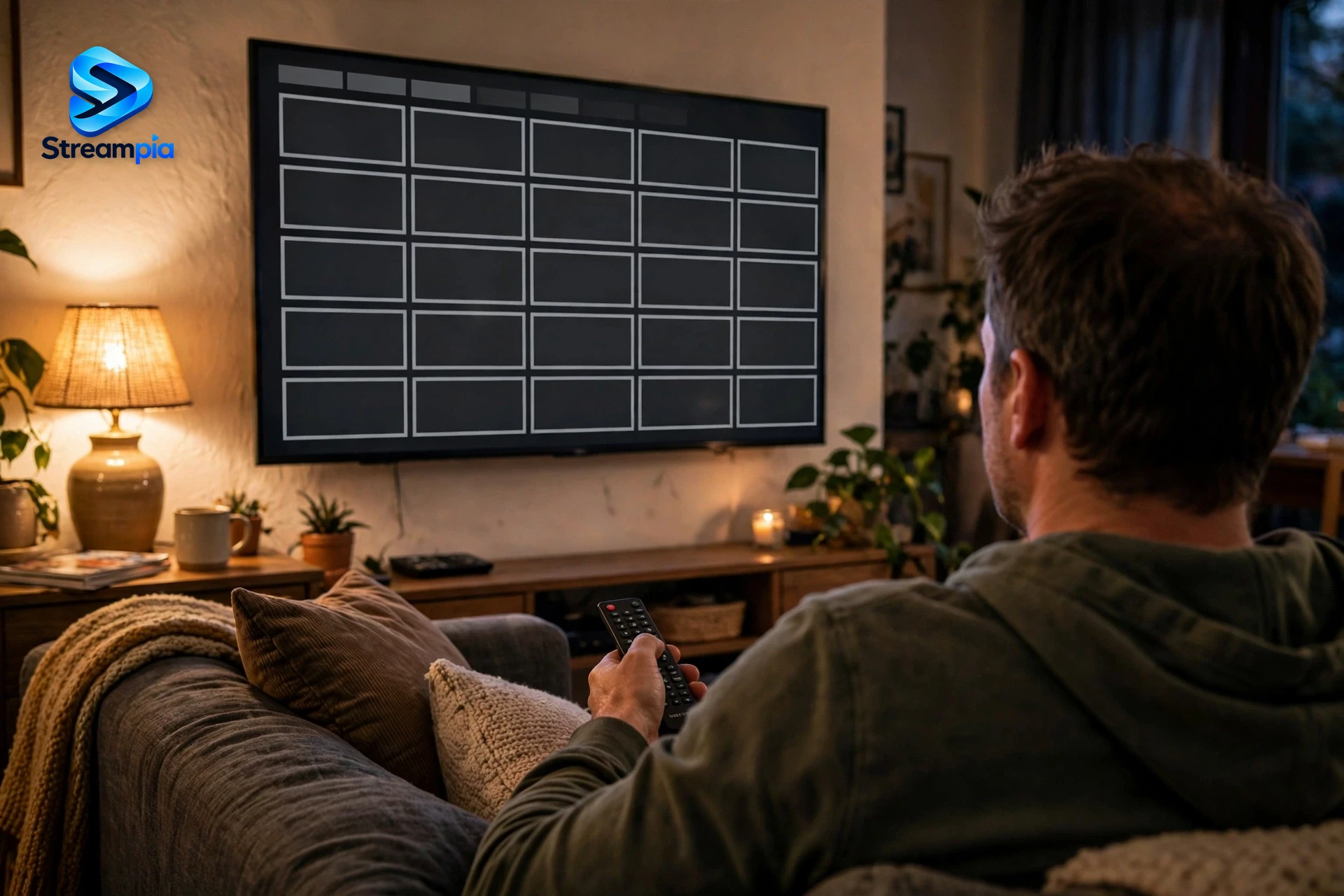
Sometimes the channels play perfectly but the programme guide is empty. The guide data comes from a separate source to the channels, so it can fail while everything else works. First, give the app a few minutes to download the guide — after a fresh install it can take a while to fill in. Then look in the app settings for an EPG update or refresh option and run it manually. In TiviMate, this is under Settings, then EPG, then Update EPG. If it is still blank, check whether the app is using the right EPG source, and try switching if your app offers a choice.
10. Check the playlist or portal URL
If the app opens and logs in, but the channel list is empty or shows an error, the playlist or portal address may have changed — providers occasionally move their servers. If you use an M3U playlist, ask your provider to confirm the current link and compare it with the one in your app. Do not guess a new address or copy one from a forum — addresses shared publicly are often out of date. If the playlist loads on one device but not another, delete it from the failing device and add it again. For channels that load but freeze, see our IPTV buffering fixes.
What to tell support when you ask for help
If you have worked through the steps above and it still does not work, contact your provider's support — and give them detail. Note down four things: the exact error message; what device and app you are using; whether it fails on all channels or only some; and whether it works on a different device or on mobile data. That lets support tell in seconds whether the problem is your account, your device, your connection or their server. If you are a Streampia customer, contact us on WhatsApp via streampia.com with those four details.
What not to do
A few things that look like fixes will only make it worse. Do not factory reset your device as a first step — it wipes every app and setting and should be the very last resort. Do not share your login details with anyone offering to "fix" your IPTV in a forum or group, and never pay a stranger to repair your subscription — genuine support comes from your provider. And do not buy a second subscription while the first is still active; if the cause is your connection, the new one will fail the same way.
FAQs
Why has my IPTV stopped working all of a sudden?
The most common causes are a dropped or slowed internet connection, an expired subscription, a corrupted app cache, or a temporary problem on the provider's side. Restart the app, device and router, check your speed, and confirm your subscription is still active. If it worked yesterday, wait thirty minutes and try again.
Why does my IPTV login keep failing?
Usually a typing mistake in the server address, username or password, or an expired subscription. Copy and paste the details from the email your provider sent you, check for lookalike characters such as O and 0, and make sure you are not already logged in on another device.
Why do the channels load but nothing plays?
This usually means the login and the playlist are fine, but the stream itself cannot get through — most often a slow or unstable connection, a VPN routing problem, or a busy server. Run a speed test, try a wired connection, turn the VPN off (or on), and test a different channel. If some channels play and others do not, the fault is usually on the provider's side.
Why is my programme guide blank?
The guide data is downloaded separately from the channels, so it can fail on its own. Give it a few minutes after a fresh install, then use the refresh option in the app settings. If it stays blank, the app may be using the wrong EPG source, or the provider may not supply guide data for those channels.
Should I use a VPN with IPTV?
A VPN can help if your internet provider blocks or slows IPTV traffic, especially during live sports. But a VPN can also cause login failures and slow speeds if the server is far away or blocked. Try with the VPN off first, then on — and use a UK server, so your connection stays fast.
Try the free trial before you commit
If you are still deciding whether IPTV is right for you, the simplest way is a free trial. Our free trial guide for UK viewers explains how the 24-hour trial works and what to check — channel range, 4K quality, sports coverage and how it behaves on your own Wi-Fi. Streampia offers 13,000+ live channels and 120,000+ films and series on demand in 4K, with 99.9% uptime, and plans from £11.99 a month. Contact us on WhatsApp via streampia.com.
Try Streampia Free for 24 Hours
No card required — 13,000+ live channels and 120,000+ movies & shows in 4K.
Claim Free Trial on WhatsApp