Intro
Most people watch IPTV on a TV stick or a smart TV, but a computer is the easiest place to start. There is nothing to buy, nothing to sideload and no app store to fight with — the player is a download away, and your playlist works the same way it does on every other device.
A computer is also the best place to test things. If a channel will not play on your laptop, the problem is almost never the app — it is the playlist, the login or the connection.
There is one honest warning first: no IPTV app includes channels. Every player below is just a remote control for a playlist. The channels, films and TV guide come from your IPTV service, so a free player still needs a paid subscription to show anything. With that understood, here are the seven best IPTV apps for Windows and Mac in 2026.
The short answer
- Best for a quick test: VLC — free, paste an M3U link and watch in two minutes.
- Best full TV guide: Kodi with the PVR IPTV Simple Client add-on — a proper channel list and guide, free.
- Best familiar experience: IPTV Smarters Pro for desktop — the same Xtream Codes login as the phone app.
- Best desktop-first player: IPTVnator — free and open source, built for computers.
- Best Windows-only option: MyIPTV Player — a simple native app from the Microsoft Store.
- Best on a Mac: IPTVX — a proper Mac app with a clean guide, also on iPhone and Apple TV.
- Best workaround for TiviMate fans: an Android emulator — it works, but it is a workaround.
If you only want one answer: start with VLC to prove your playlist works, then move to Kodi or IPTV Smarters Pro for everyday watching. Both are free.
The seven apps compared
| App | Windows | Mac | Cost | Best for |
|---|---|---|---|---|
| VLC | Yes | Yes | Free | Testing a playlist in two minutes |
| Kodi + PVR IPTV Simple Client | Yes | Yes | Free | A full TV guide on a computer |
| IPTV Smarters Pro (desktop) | Yes | Yes | Free | The familiar Smarters login |
| IPTVnator | Yes | Yes | Free | A desktop-first player with a guide |
| MyIPTV Player | Yes | No | Free | A simple Windows app |
| IPTVX | No | Yes | Free, full version from $3.99/mo | Mac users who want a clean app |
| TiviMate (via emulator) | Yes | Yes | Free + Premium ~$9.99/yr | TiviMate fans only |
1. VLC Media Player — the quick test
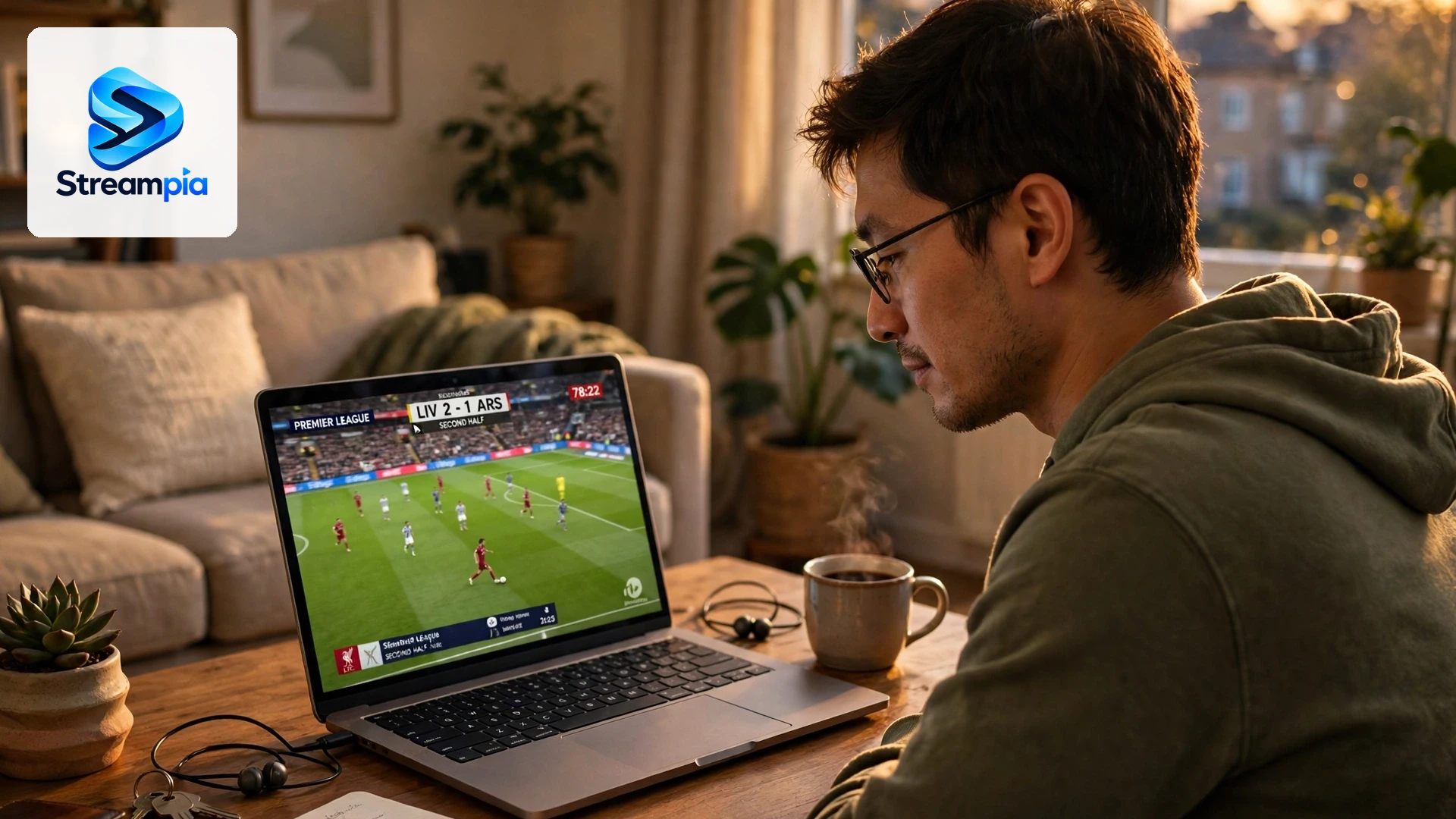
VLC is the free media player from VideoLAN, and it is the fastest way to answer one question: does my playlist work? Open Media, then Open Network Stream, paste your M3U link, and a channel plays within seconds. There are no accounts, no adverts and no tracking.
The trade-off is that VLC is a media player, not a TV app. There is no programme guide, no channel categories in a TV grid and no favourites the way a TV app has them. A playlist with thousands of channels becomes one long list. VLC is also slow with very large playlists.
Use VLC for testing a new playlist, checking whether a single channel is live, or watching one match on a laptop. If VLC plays a channel and your TV app does not, the playlist is fine and the problem is in the TV app — usually a wrong login or a stale playlist.
2. Kodi + PVR IPTV Simple Client — the full media centre
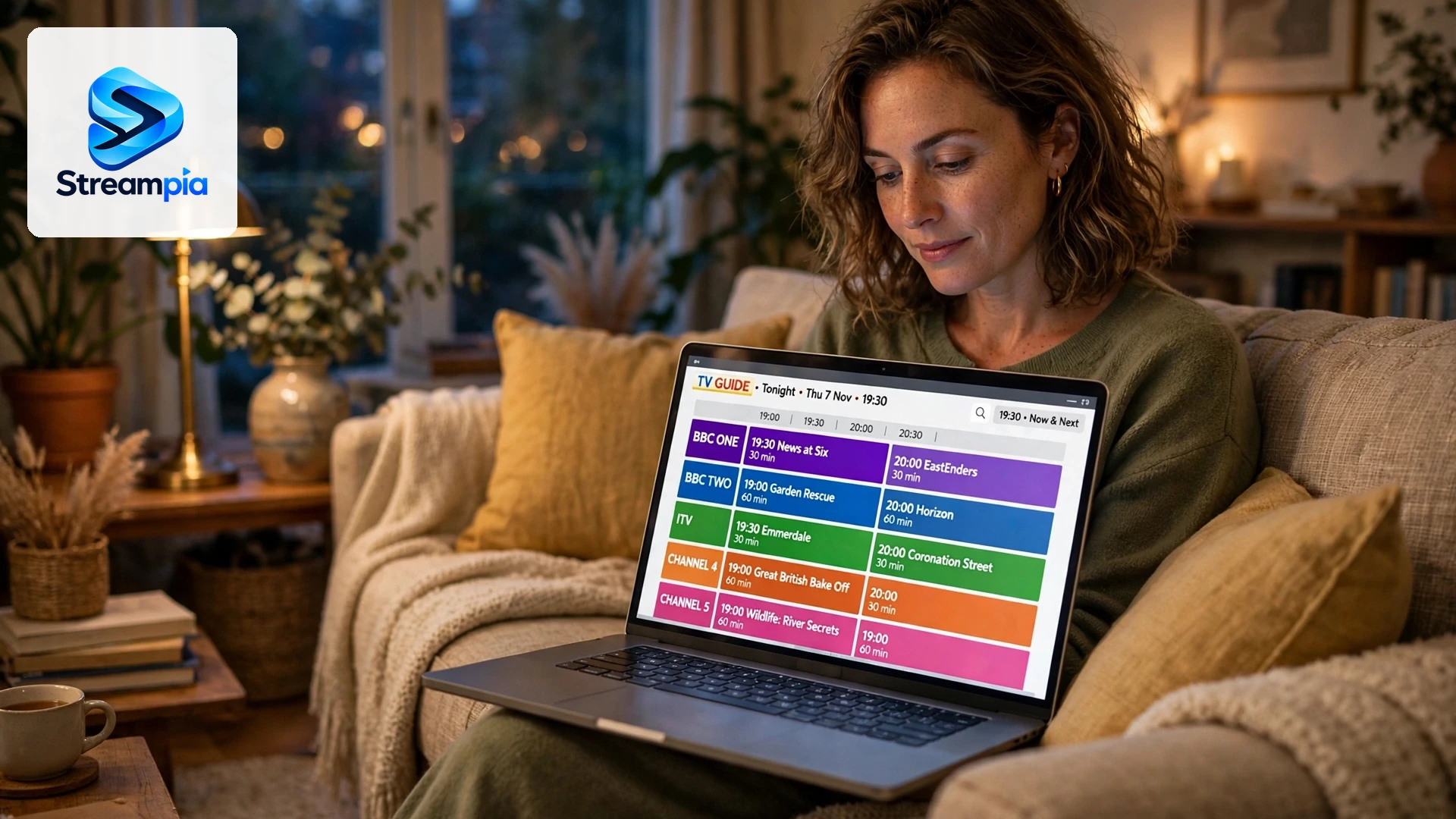
Kodi is a free, open-source media centre for Windows, Mac, Linux, Android and more. On its own it plays your local files. With the official PVR IPTV Simple Client add-on, it becomes a proper IPTV player: point it at your M3U playlist and your XMLTV guide, and Kodi builds a channel list and a programme guide like a set-top box.
Since Kodi 20 (Nexus), the add-on accepts several playlist and guide pairs at once. Recording and timers are possible through add-ons, though they need more setup than on a TV app.
Kodi takes longer to set up than anything else here — install Kodi, enable the PVR add-on, add the playlist, add the guide, wait for it to load. But once it is done, it is the closest thing to a real TV experience on a computer, and it costs nothing.
3. IPTV Smarters Pro (desktop) — the familiar one
IPTV Smarters Pro is the app most people install first on a phone or Firestick, and there is a desktop version for Windows and macOS too. Log in with Xtream Codes — server, username and password — and you get live TV, films, series and the guide, in the same layout as the mobile app.
That familiarity is the whole point. If you already use Smarters on your TV, the desktop version needs no learning at all. Our IPTV Smarters setup guide walks through the Xtream Codes login step by step, and the same steps apply on a computer.
The desktop build is free, and the developer also offers beta builds for Windows and Mac on its own website. Apple users should note the Apple build is called Smarters Player Lite — see our guide to the best IPTV apps for iPhone and Apple TV. To compare Smarters against the best TV app, read our TiviMate vs Smarters comparison.
4. IPTVnator — the free desktop-first player
IPTVnator is a free, open-source player built for computers — Windows, macOS and Linux — and it also comes as a self-hosted web app. It reads M3U and M3U8 playlists, supports Xtream Codes and Stalker portals, and shows an XMLTV guide with catch-up and timeshift.
That makes it the only app on this list designed for a keyboard and mouse first. The guide is a proper grid, channels are easy to search, and it does not feel like a phone app stretched across a monitor. It is free, with no paid tier and no adverts.
If you watch IPTV on a computer every day and want a guide without the weight of Kodi, IPTVnator is the pick. The only catch is that it is a smaller project than VLC or Kodi, so updates are less frequent — check the version on its GitHub page before you install.
5. MyIPTV Player — the simple Windows option
MyIPTV Player is a native Windows app from the Microsoft Store. Add your M3U link in Settings, pick it as the active playlist, and your channels appear in a simple list with a basic guide. It also supports Xtream Codes login.
It is not fancy — no recording, no catch-up, no multi-view — and it is Windows only. But it installs from the Microsoft Store in one click and does the job without any sideloading or setup guides.
Pick MyIPTV Player if you want the simplest possible Windows app. If you want more, Kodi or IPTVnator are the next step up.
6. IPTVX — the Mac-friendly pick
IPTVX is a proper Mac app — it also runs on iPhone, iPad and Apple TV — with a clean interface and a real programme guide. It is free to install, with the full version from $3.99 a month, $28.99 a year or a $44.99 PRO-TV one-off.
Macs have fewer dedicated IPTV apps than Windows, so a native Mac player matters. IPTVX feels at home on macOS, and on Apple Silicon Macs it handles 4K without breaking a sweat. If you watch on a MacBook or a Mac mini plugged into the TV, this is the most polished option.
The free version is enough to test your playlist. Pay only if you want the full version — and remember, the player subscription is separate from your IPTV subscription. No player includes channels.
7. TiviMate via an emulator — the workaround
TiviMate is the best IPTV app on Android TV and Firestick, and it does not run on Windows or Mac. There is no desktop version, and there never has been. The only way to run it on a computer is inside an Android emulator such as BlueStacks, which runs a virtual Android device on your PC.
It works, and some people do it to get TiviMate's grid guide and recording on a big monitor. But it is a workaround with real costs: emulators are heavy, they eat memory, the remote-style interface is awkward with a mouse, and updates can break the setup. TiviMate Premium is about $9.99 a year or about $33.99 for a lifetime licence, for up to five devices.
Our advice: do not run TiviMate on a computer just for the sake of it. Kodi gives you a similar guide natively, and IPTVnator gives you a cleaner desktop experience. Save TiviMate for the TV, where it belongs — see our guide to the best IPTV app for Firestick if that is your main screen.
How to set up IPTV on a computer
Setting up on a computer takes five minutes. Here is the quick route with VLC, and the proper route with Smarters.
With VLC (the two-minute test):
- Download VLC from the official VideoLAN website — free, no account needed.
- Open VLC, go to Media, then Open Network Stream.
- Paste your M3U playlist link and press Play. If a channel plays, your playlist and login are fine. If nothing plays, the problem is the playlist, not the app.
With IPTV Smarters Pro (everyday watching):
- Download the desktop build from the developer's website.
- Choose "Login with Xtream Codes API" and enter the server address, username and password from your IPTV service.
- Wait for the channels, films and guide to load, then pick a channel.
If you are not sure whether your login is an M3U link or Xtream Codes, our M3U vs Xtream Codes guide explains the difference. The login details come from your IPTV provider — the app cannot invent them.
Windows or Mac — which is better for IPTV?
For IPTV, it barely matters. Both run VLC, Kodi and Smarters, and both play the same streams:
- Windows has more choice. MyIPTV Player is Windows only, and emulators run better on Windows if you insist on the TiviMate workaround.
- Mac has the cleaner apps. IPTVX is Mac-first, and Apple Silicon Macs (the M-series chips) handle 4K effortlessly, which makes a Mac mini a good living-room box.
Buy neither for IPTV alone. Use the computer you already have — any laptop from the last ten years will play IPTV in 4K if the connection is fast enough.
Using your PC as a living-room TV box
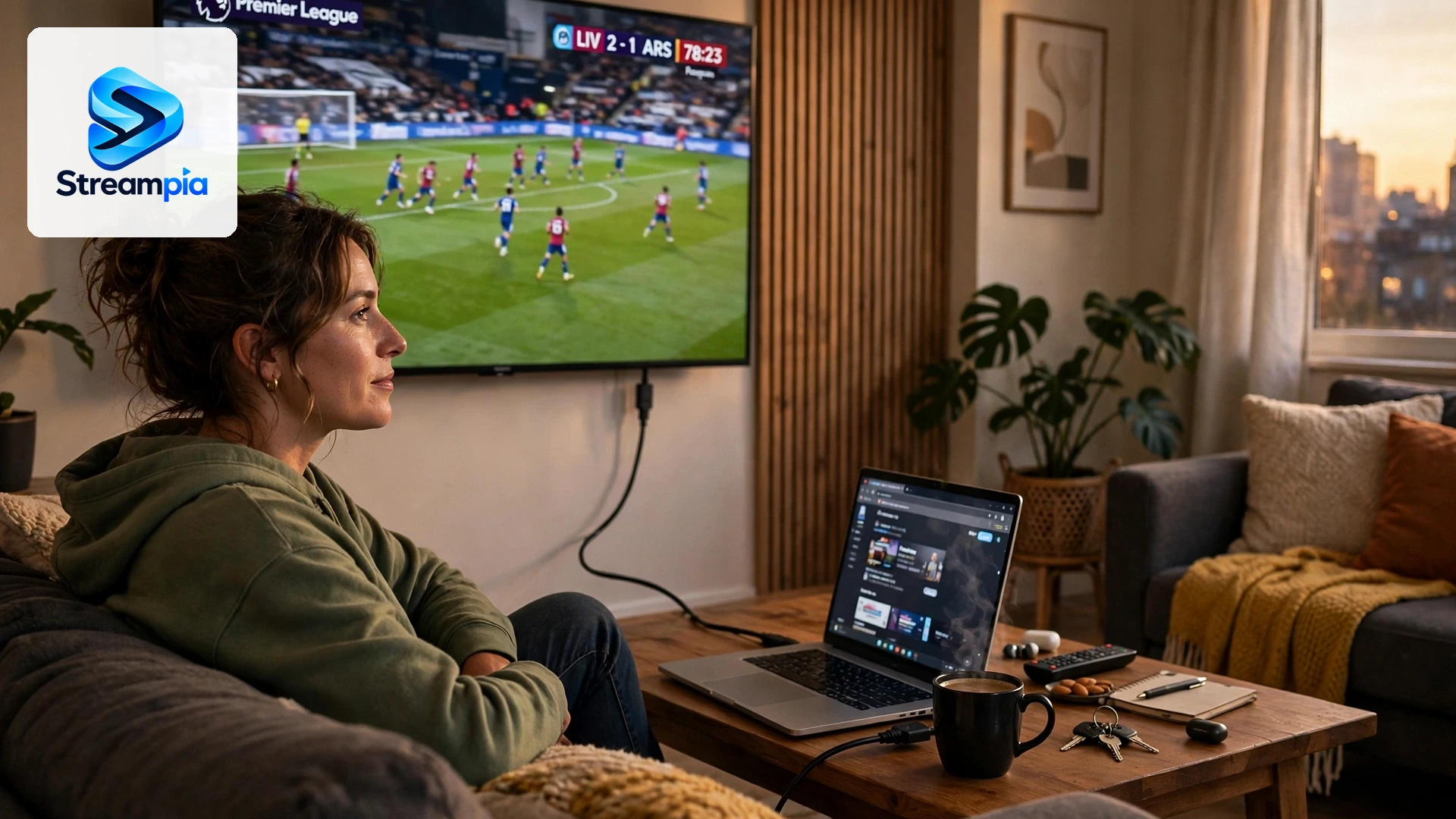
A computer makes a surprisingly good TV box, and you probably already own one. Plug a laptop into the TV with an HDMI cable, open Kodi or Smarters, and the TV becomes your screen while the laptop stays on the coffee table. A Mac mini or a small Windows PC can live behind the TV permanently.
A few tips that make it work:
- Use a wireless keyboard as a remote. A mouse on the sofa is miserable; a small wireless keyboard with a touchpad is the cheap fix.
- Set the TV as the only display. Mirroring the laptop screen can cap the resolution or the refresh rate.
- Wire it if you can. Wi-Fi is fine for one stream, but an Ethernet cable removes the buffering that ruins a big match. If a stream still stutters, our IPTV buffering fixes cover the usual causes.
- Turn off notifications. Nothing kills a film like a work email popping up on the TV.
Common problems on a computer
The playlist will not load. Check the M3U link first — one wrong character breaks it. Paste it into a browser: if it downloads a file, the link is fine and the app is the problem. Our IPTV not working guide walks through the full checklist.
The guide is empty. VLC has no guide at all, so this is expected there. In Kodi or IPTVnator, the guide comes from a separate XMLTV link — the playlist alone is not enough. Make sure both links are entered, then wait a few minutes.
It buffers on the computer but not the TV. A computer shares its connection with updates, cloud sync and browser tabs. Close the heavy apps and try an Ethernet cable. If it still buffers, the problem is the connection or the provider, not the player.
The picture looks soft. Check the stream quality in the app and the TV's own picture settings. A 4K stream on a 1080p laptop screen will not look 4K — plug it into the TV to judge it properly.
Which app should you pick?
- Just testing a playlist: VLC. Two minutes, no setup.
- Everyday watching on Windows: Kodi for a full guide, or IPTV Smarters Pro for the familiar layout.
- Everyday watching on a Mac: IPTVX for a native app, or Kodi if you want it free.
- A desktop player with a guide, free: IPTVnator.
- The simplest Windows app: MyIPTV Player from the Microsoft Store.
- TiviMate on a computer: do not bother — use Kodi instead, and keep TiviMate on the TV.
There is no single best IPTV app for Windows and Mac, because the right choice depends on how you watch. But every good option here is free, so try two of them: install VLC and one proper player, use the same playlist in both, and keep the one that feels right. Switching players costs nothing — you are only changing the remote control, not the channels.
Try it free with Streampia
The best way to judge any of these apps is with a real playlist, and that is what a free trial is for. Streampia gives you 13,000+ live channels and 120,000+ films and shows in 4K, with 99.9% uptime — and the same login works in every app on this page, on Windows, Mac, Firestick, phone and smart TV.
Start with our free 24-hour trial and test it in VLC or Kodi on your computer first. If it plays well there, it will play well everywhere. Contact us on WhatsApp via streampia.com and we will send your login details.
Plans start at £11.99 for one month, £29.99 for three months, £63.99 for six months, or £95.99 for twelve months — see the full pricing page. One subscription, every device, no card needed for the trial.
FAQs
What is the best IPTV app for Windows?
VLC for a quick test with an M3U link, or Kodi with the free PVR IPTV Simple Client add-on if you want a TV guide. IPTV Smarters Pro for desktop is the easiest option if you already use Smarters on your phone or TV.
What is the best IPTV app for Mac?
IPTVX is the most polished native Mac app, with a clean guide and a free version to test. Kodi and VLC are the best free options on a Mac, and IPTV Smarters Pro also has a macOS build with the same Xtream Codes login as the mobile app.
Can I watch IPTV on a PC for free?
Yes — VLC, Kodi and IPTVnator are all free, and IPTV Smarters Pro is free on desktop too. But no player includes channels: you still need a playlist or login from an IPTV service. A free player plus a free trial is the cheapest way to test it properly.
Does TiviMate work on Windows or Mac?
No. TiviMate is built for Android TV and Fire TV only, and there is no Windows or Mac version. You can run it inside an Android emulator, but it is heavy and awkward with a mouse — Kodi gives you a similar guide natively on a computer.
Why is my IPTV buffering on my laptop but not my TV?
A laptop shares its connection with updates, cloud sync and browser tabs, and Wi-Fi is often weaker at a desk than at the TV. Close the heavy apps, try an Ethernet cable, and test the same channel in VLC — if VLC plays it smoothly, the problem is in the other app.
Try Streampia Free for 24 Hours
No card required — 13,000+ live channels and 120,000+ movies & shows in 4K.
Claim Free Trial on WhatsApp