Intro
Roku is the hardest mainstream streaming device to get IPTV working on — and most of the guides ranking for it are wrong. They still tell you to add a "private channel" with a code, a method Roku killed in early 2022. Follow those steps today and you will hit a dead end.
The honest answer is narrower than the guides admit: there is no sideloading on Roku, no APK files, and no TiviMate in the Roku Channel Store. What does work is a certified player app — IBO Player Pro leads, with IPTV Smarters Pro also listed — plus two practical fallbacks that most Roku owners already have in the house. This guide covers all three, in order, so you can stop guessing.
If you are still choosing a provider, our guide to choosing a safe IPTV provider explains the 10 checks that matter before you pay — the setup below assumes you already have a playlist or login from a provider you trust.
The short answer
Yes, you can watch IPTV on a Roku — but only through a certified Channel Store app, and the realistic choice is IBO Player Pro. Install it from the Roku Channel Store, activate it with the Device ID and Key it shows you, and load your playlist. That is the whole method. There is no secret code, no developer mode trick, and no way to install TiviMate on a Roku. (IPTV Smarters Pro is also listed in the store as an alternative — see the FAQ below.)
If IBO Player Pro does not suit you, the two fallbacks are screen mirroring or AirPlay from your phone, or plugging a Firestick into a spare HDMI port and using the Firestick for IPTV instead. The Firestick route is the better long-term setup — our guide to the best IPTV app for Firestick compares the 7 apps that actually run on it, including the Vega OS warning for the newest sticks.
Why most Roku IPTV guides are wrong
Roku used to allow private channels — apps installed by entering a code on Roku's website. That door closed in early 2022, when Roku shut private (non-certified) channels down. Any guide that starts with a channel code is describing a Roku that no longer exists.
The second thing guides get wrong is sideloading. On a Firestick you can install apps from outside the Amazon Appstore; on Roku you cannot. There is no APK file to install, no Downloader app, and no developer-mode workaround that turns a Roku into an Android box. Roku runs its own operating system, and the only apps it runs are the ones in its Channel Store.
That is why the same app names keep misleading people. TiviMate is the best-known IPTV player on Android TV and Firestick, but it is not in the Roku Channel Store and cannot be added any other way. IPTV Smarters Pro is listed in the store, so it is a genuine alternative — but if a guide tells you to install TiviMate on a Roku, it is either outdated or describing a different device.
What actually works on Roku: IBO Player Pro
IBO Player Pro is a certified app in the Roku Channel Store (published by mtvmedia — check the publisher name on the listing to avoid look-alikes), which is the only thing that matters on this device. You install it the same way you install Netflix or BBC iPlayer: from the store, on the Roku itself.
- On your Roku home screen, open Streaming Store (the Channel Store).
- Search for IBO Player Pro and add the channel.
- Open IBO Player Pro. It shows a Device ID and a Device Key on screen — write both down.
- On your phone or computer, open the IBO Player Pro activation page and enter the Device ID and Key, then add your playlist (M3U link) or Xtream Codes login.
- Restart IBO Player Pro on the Roku. Your channels and guide should load.
Activation is a one-time payment per device — around £5.99 in the UK for IBO Player Pro. Note the separate IBO Player app is priced differently (€5 a year or €10 for a lifetime licence), so check which app you are buying, and confirm the in-app price before you pay, as app prices change. The app itself is the player only: it does not include any channels. Your channels come from your provider's playlist, the same M3U or Xtream Codes login you would use in any other player. If you are not sure which login type you have, our M3U vs Xtream Codes guide explains the difference in plain terms.
Two honest caveats. First, IBO Player Pro is a straightforward player, not a power-user app: do not expect TiviMate's recording, multi-view or catch-up features. Second, the electronic programme guide depends on your provider supplying guide data — if the guide is blank while channels play, that is a guide-data problem, not a Roku problem: update the guide in the player settings and check your device time zone first, as a wrong time zone shifts every programme.
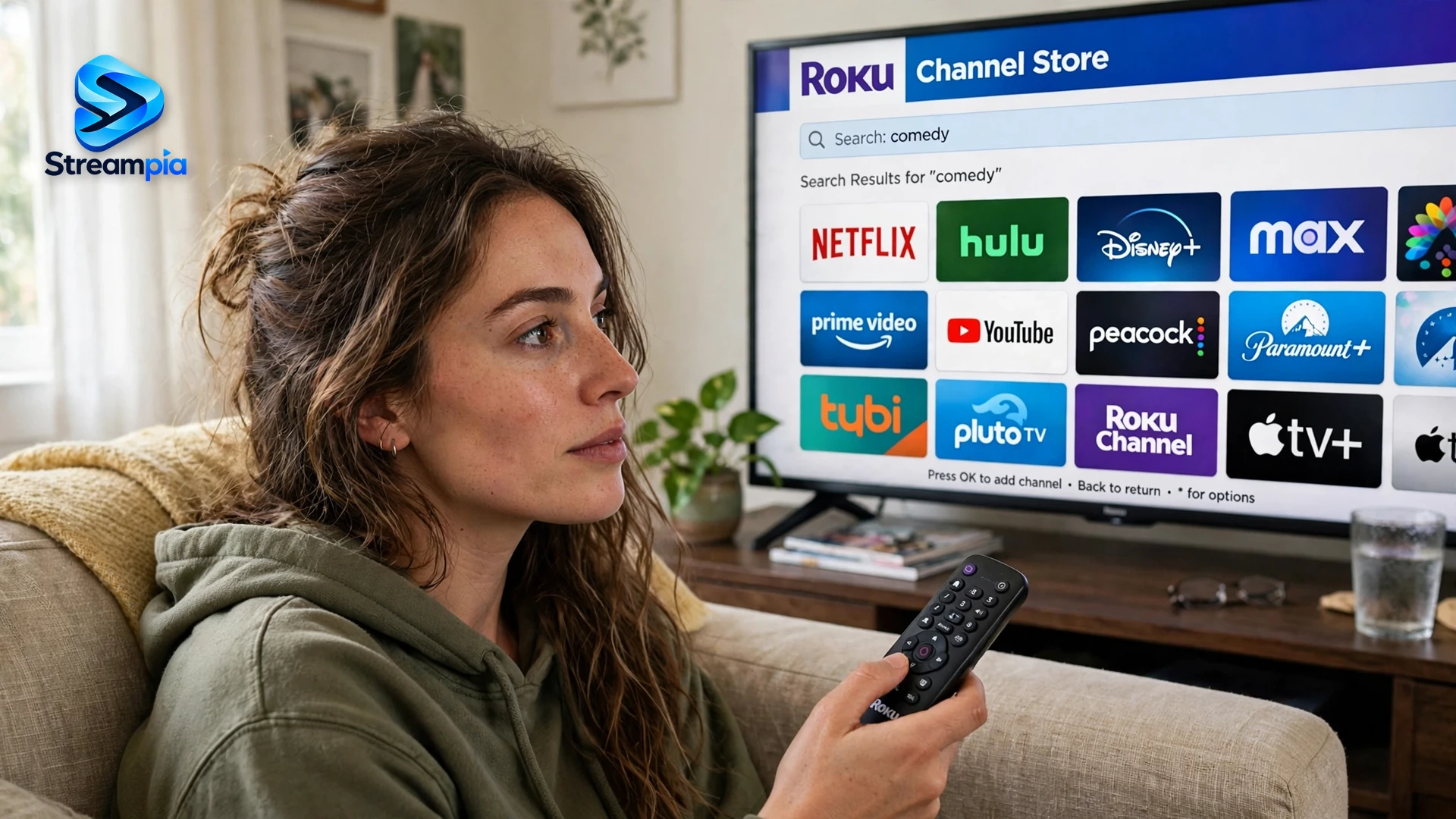
Fallback 1: Screen mirroring and AirPlay
If you do not want to pay for IBO Player Pro, you can play IPTV on your phone and mirror it to the Roku. This works, but it is a compromise, and you should know that before you rely on it.
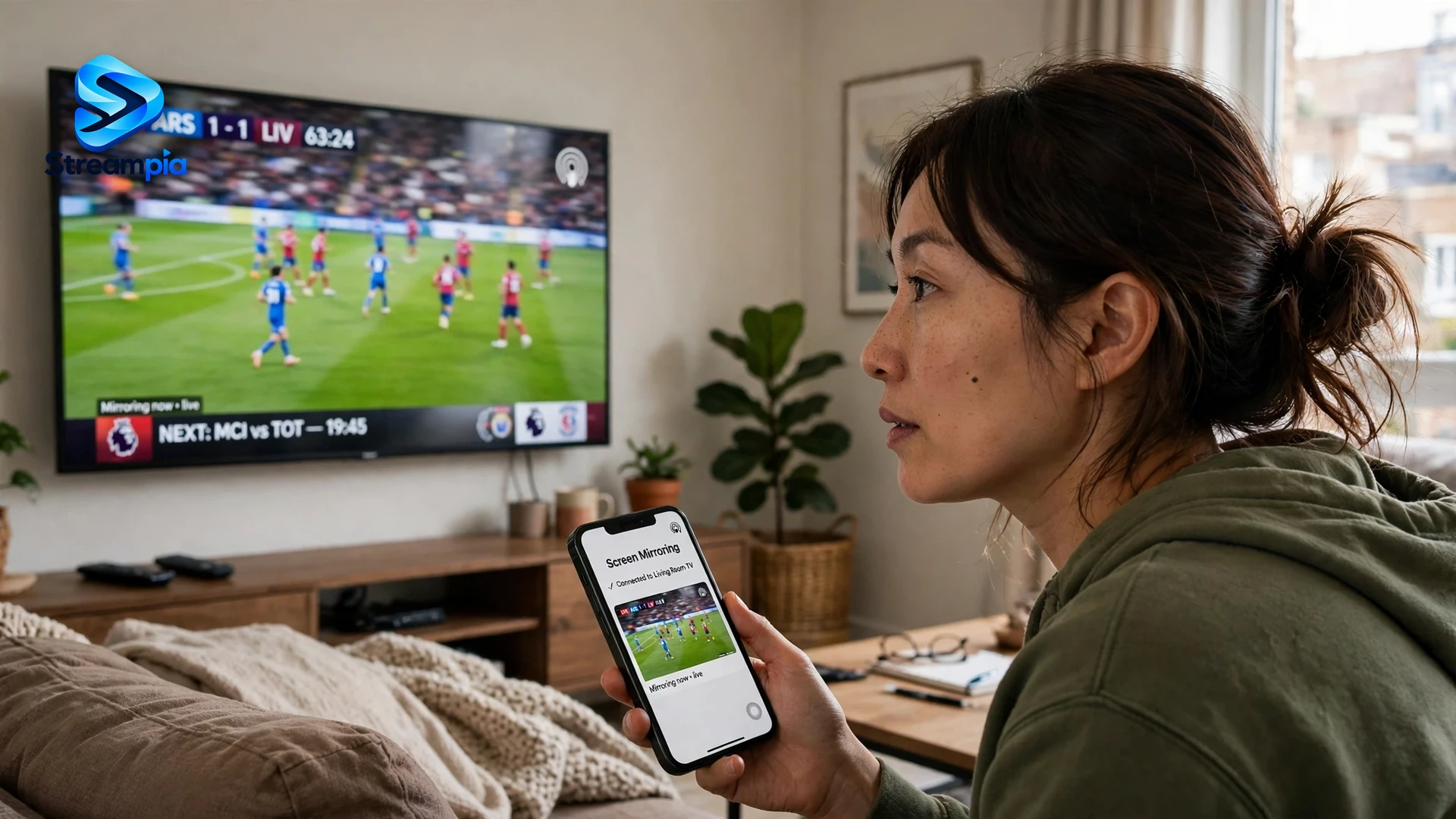
On an iPhone, use AirPlay: start the stream in your IPTV app, tap the AirPlay icon, and pick your Roku. On Android, use screen mirroring (called Smart View on Samsung, Cast on others) from your phone's quick settings and pick the Roku. Your phone must stay on, stay on the same Wi-Fi network, and stay in range — a phone call or a notification can interrupt the picture, and the stream quality depends on your phone's Wi-Fi connection, not just your broadband.
Mirroring is fine for testing a provider or watching one match. It is not a good permanent setup, and it drains your phone battery. If you find yourself mirroring every evening, one of the other two options on this page will serve you better.
Fallback 2: A Firestick in the spare HDMI port
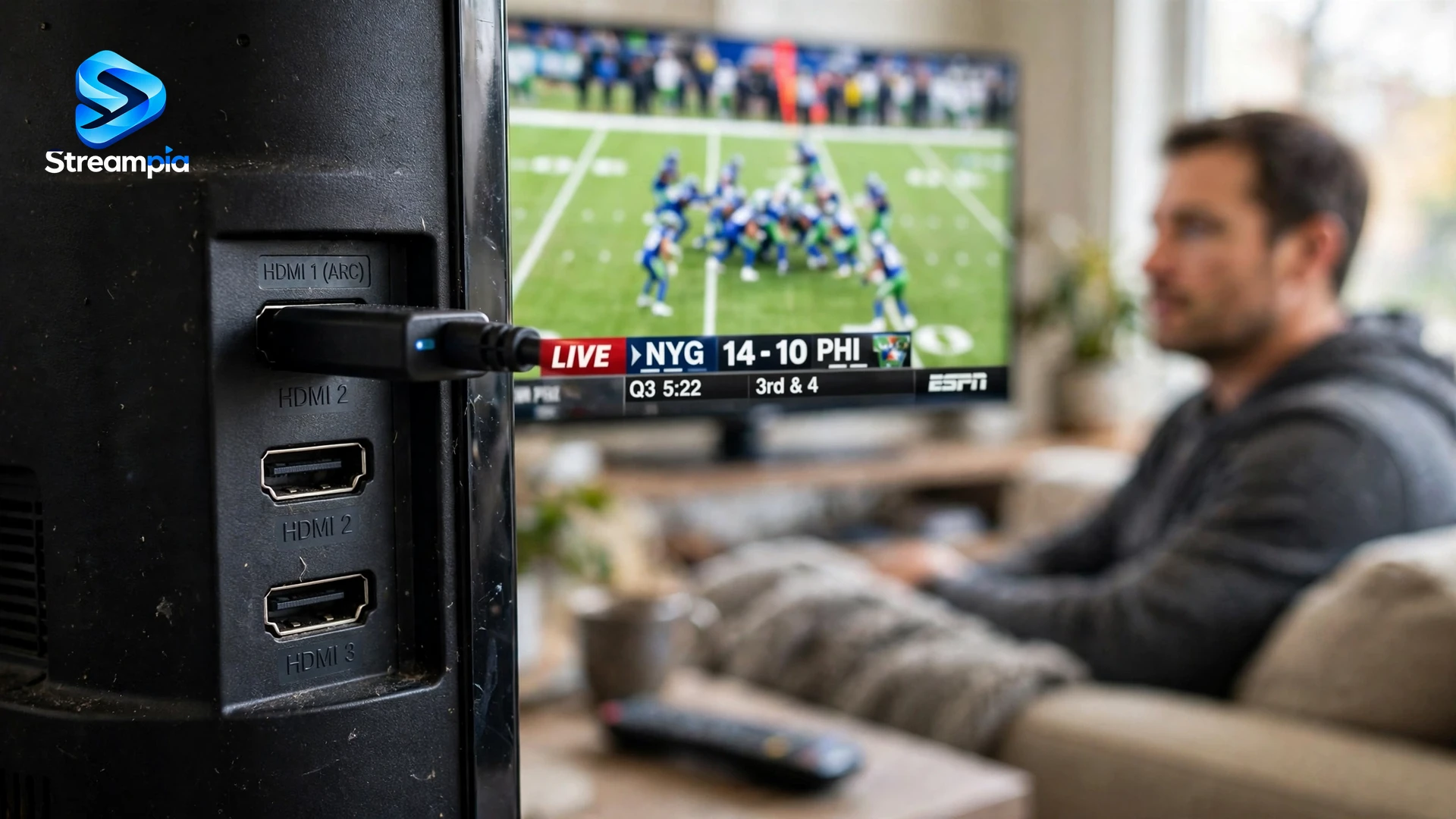
The most practical answer for a lot of Roku owners is not to fight the Roku at all. A Firestick costs less than most people expect, plugs into a spare HDMI port on the same TV, and runs the full range of IPTV players — TiviMate, IPTV Smarters Pro, and the rest — that Roku cannot run. You keep the Roku for Netflix, iPlayer and everything else, and switch inputs when you want IPTV.
Before you buy, check the Vega OS warning in our Firestick guide: the newest Amazon sticks (Fire TV Stick 4K Select, 2nd-gen Fire TV Stick HD and 3rd-gen Fire TV Stick 4K, all 2026 models) run Vega OS and cannot sideload apps at all. If you buy a stick for IPTV, make sure it is an Android-based Fire OS model, and check Settings, then My Fire TV, then About — OS 1.x means Vega. Our best IPTV app for Firestick guide compares all 7 apps and explains how to check your model.
This is also the route to take if you want recording or catch-up. TiviMate Premium (around $9.99 a year) records from the programme guide to a USB drive, and catch-up keeps programmes for a few days — neither exists on Roku's IBO Player Pro. One honest limit applies on every Streampia plan: plans are 1 connection, so recording one channel while watching another counts as two streams.
Roku vs Firestick for IPTV: which should you buy?
If you already own a Roku and only want IPTV on the main TV, try IBO Player Pro first — it is the cheapest test, and for many people it is enough. If you are buying a device mainly for IPTV, buy a Firestick (an Android-based Fire OS model, not a Vega OS one). It has the better players, the better guide, and recording.
The same logic applies to other devices. Samsung and LG TVs have their own native players — our best IPTV apps for Samsung and LG TVs guide compares 6 of them — and iPhone and Apple TV owners have 6 App Store players of their own. Roku is the odd one out: only a couple of working players, no sideloading, and the best experience comes from adding a second device.
What about Smart IPTV, Flix IPTV and the other names?
You will see other player names in Roku searches — Smart IPTV, Flix IPTV, DuplexPlay and similar. Some of these exist on Samsung and LG TVs, where they are genuine native apps. On Roku they are not in the Channel Store, and the guides claiming otherwise are usually describing the Samsung/LG version without saying so. Do not pay an activation fee for any 'Roku' player until you have confirmed it is actually listed in the Roku Channel Store on your own Roku. If it is not there, the fee buys you nothing.
The 5-minute check before you pay for anything
- Open the Roku Channel Store on your own Roku and search for the player by name. If it is not listed, do not pay for it anywhere else.
- Confirm your provider gives you an M3U link or Xtream Codes login — IBO Player Pro needs one of those, and a provider that only works inside its own app will not work on Roku.
- Test with the free 24-hour trial first. Streampia's trial runs over WhatsApp with no card required, and it is the fastest way to find out whether the guide and channels load properly on your setup.
- Check your Wi-Fi: a Roku on a weak 2.4 GHz signal will buffer no matter how good the provider is. Our IPTV buffering fix guide covers the 10 fixes in order.
- If the guide is blank but channels play, it is a guide-data issue — check your device time zone first, as a wrong time zone shifts every programme.
FAQs
Can I install TiviMate on Roku?
No. TiviMate is not in the Roku Channel Store, and Roku does not allow sideloading or APK installs. TiviMate runs on Firestick, Android TV and Android boxes. If TiviMate is the player you want, use a Firestick in a spare HDMI port.
Is IPTV Smarters Pro available on Roku?
Yes — IPTV Smarters Pro is listed in the Roku Channel Store, so you can install it the same way as any other channel. It is a solid alternative to IBO Player Pro, though IBO Player Pro is the better-known choice for Roku. TiviMate, by contrast, is not in the store and cannot be added.
Do I need a VPN to watch IPTV on Roku?
No, not for a legitimate service. A VPN is a privacy tool, not a legal shield, and it does not change the legality of what you stream. It can also slow your connection and cause buffering.
Is IPTV legal in the UK?
Watching a properly licensed service is legal; the legality question is about the provider, not the device. Our guide to whether IPTV is legal in the UK explains the distinction, and our 10-point checklist for choosing a safe IPTV provider shows what to check before you pay.
Why is my Roku IPTV guide blank?
The guide is a separate data file from the channels — channels can play while the guide stays blank. The usual causes are missing guide data from the provider, a wrong device time zone, or a channel-to-guide mismatch. Update the guide in the player settings, check the time zone, and if it is still blank, ask your provider whether guide data is included.
The bottom line
Roku can do IPTV, but only on Roku's terms: a certified Channel Store app, and in practice that means IBO Player Pro (with IPTV Smarters Pro as an alternative). Forget private channel codes — they died in 2022 — forget sideloading, and forget TiviMate on this device. If IBO Player Pro does the job, you are done in ten minutes. If it does not, a Firestick in the spare HDMI port is the better setup, and it costs less than replacing the TV.
Want to test it first? Message Streampia on WhatsApp and claim your free 24-hour trial — no card required — then follow the IBO Player Pro steps above. If the channels and guide load cleanly on your Roku, you have your answer before you spend anything.
Streampia plans: 1 Month £11.99, 3 Months £29.99, 6 Months £63.99, 12 Months £95.99 — 13,000+ live channels, 4K and 8K, anti-freeze, 1 connection, 24/7 support. Mention "10% off" on WhatsApp for 10% off the 6- and 12-month plans (£57.59 and £86.39).
Try Streampia Free for 24 Hours
No card required — 13,000+ live channels and 120,000+ movies & shows in 4K.
Claim Free Trial on WhatsApp