Intro
Your Firestick was fast when it came out of the box. Now it takes ten seconds to open an app, the remote feels unresponsive, and menus stutter. The good news is that a slow Firestick is almost never broken. In most cases it is full storage, a bloated app cache, too many background apps, or a weak Wi-Fi signal — and all of those can be fixed in about ten minutes with the remote you already have.
These are the eight fixes that actually work, in the order to try them. Start at the top and stop as soon as the stick feels fast again — most people never get past fix three.
The short answer
Restart your Firestick, clear the cache on your biggest apps, and uninstall the apps you never open. Those three steps fix the majority of slow Firesticks. If it is still lagging, force stop background apps, turn off data monitoring, check your Wi-Fi signal, and make sure the stick is powered from the wall socket, not the TV's USB port. A factory reset is the last resort, and it works — but only after you have tried everything else.
Why your Firestick slows down
A Firestick is a small computer with limited storage and memory, and it fills up faster than you expect. Every app stores cached data — thumbnails, artwork, temporary files — and that cache grows every time you open the app. Streaming apps are the worst offenders: a single app can hold hundreds of megabytes of cached images and previews.
Storage is the biggest culprit. Older Firesticks have 8 GB of storage, and Fire OS takes a large share of it. Once free space drops below about 1 GB, the system has nowhere to write temporary files and everything slows down. Background apps make it worse, and so does heat: a stick wedged behind a TV with no airflow runs hot and throttles itself.
1. Restart your Firestick
Always start here. A restart clears temporary memory, kills stuck background processes, and gives the system a clean start. It takes two minutes and fixes more problems than any other single step.
Hold the Select and Play/Pause buttons together for about five seconds until the stick restarts, or go to Settings, then My Fire TV, then Restart. For a full power cycle, unplug it from the power socket, wait thirty seconds, and plug it back in.

2. Clear the cache on your streaming apps
Cached data is meant to make apps faster, but on a Firestick it does the opposite once it grows too large. Clearing the cache deletes temporary files without touching your logins, watchlists or settings, so it is completely safe to do regularly.
Go to Settings, then Applications, then Manage Installed Applications. Pick an app — start with the ones you use most, such as Netflix, Prime Video, YouTube or your IPTV player — and select Clear Cache. Do not select Clear Data unless you are happy to log in again, because that wipes the app back to a fresh install. Work through your five biggest apps and you can easily free several hundred megabytes.
3. Uninstall the apps you never open
Every installed app takes storage, and many run background processes even when you never open them. The average Firestick collects apps the way a drawer collects cables — a game tried once, a free app installed for a single match, three different players doing the same job.
Go to Settings, then Applications, then Manage Installed Applications, and sort by size. Anything over 200 MB that you have not opened in a month can go — select it and choose Uninstall. Aim to keep at least 1 GB free, which you can check in Settings, then My Fire TV, then About, then Storage.
4. Force stop apps running in the background
Closing an app on a Firestick does not always stop it. Pressing Home takes you back to the menu, but the app can keep running behind it, using memory and occasionally downloading updates. Over a week of normal use, several apps can be running at once without you knowing.
Go to Settings, then Applications, then Manage Installed Applications, pick an app you are not using, and select Force Stop. It deletes nothing — the app simply stops until you open it again. Do not force stop system apps you do not recognise; stick to the apps you installed yourself.
5. Turn off data monitoring and usage collection
Fire OS runs a few background services that most people never use and that quietly consume resources. Two are worth switching off. First, data monitoring: go to Settings, then Preferences, then Data Monitoring, and turn it off. It tracks how much data each app uses, which is useful on a capped connection, but on unlimited home broadband it is just overhead.
Second, usage collection: go to Settings, then Preferences, then Privacy Settings, and turn off Collect App Usage Data. While you are there, turn off Interest-Based Ads too. Neither setting changes what you can watch.
6. Check your Wi-Fi signal
A Firestick that feels slow is sometimes a Firestick with a weak connection. Menus load from the internet and artwork downloads on demand, so a weak signal makes every screen feel sluggish even when the stick itself is fine.
Go to Settings, then Network, select your Wi-Fi network, and press Play/Pause to see the signal strength. If it says Fair or Poor, the connection is your problem. First, try the HDMI extender that came in the box: moving the stick a few centimetres away from the back of the TV often improves the signal noticeably, because the TV itself blocks Wi-Fi.
If your router supports it, connect to the 5 GHz network rather than 2.4 GHz — it is faster and less crowded. Restarting the router is worth doing too: unplug it for thirty seconds and plug it back in. For 4K streaming you want a steady speed of about 25 Mbps, which you can check with the free Internet Speed Test app from the Amazon Appstore.
7. Use the proper power supply
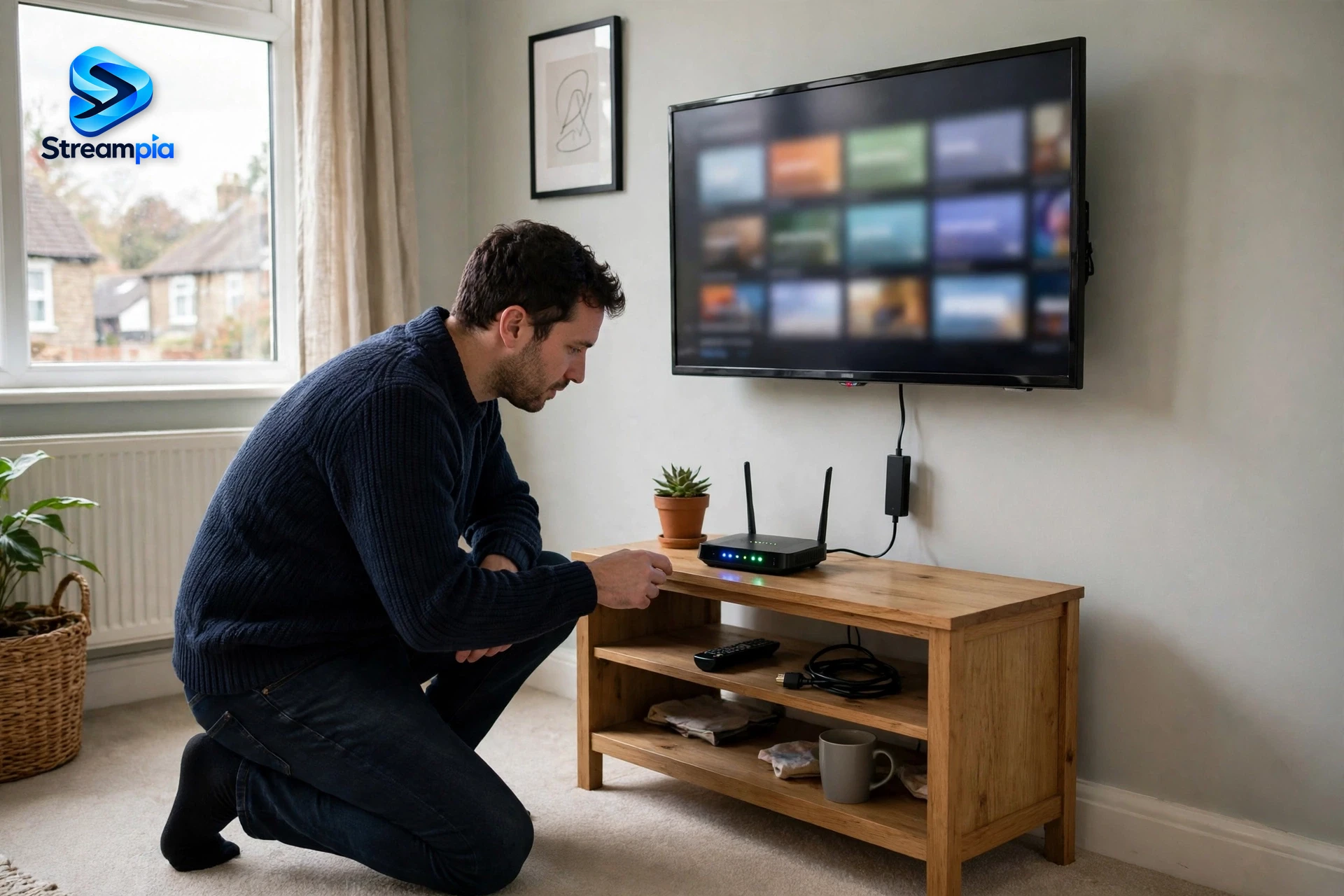
This is the most overlooked fix, and it causes a surprising amount of lag. Many people plug the Firestick's USB cable into the TV's USB port for convenience. The problem is that most TV USB ports do not supply enough power. An underpowered Firestick runs slowly, reboots itself, and can show a low-power warning on screen.
Use the power adapter and cable that came in the box, plugged into a wall socket. If you have lost the original, use one rated at 5V and at least 1A.
8. Update Fire OS and your apps
Outdated software can be slow software. Amazon regularly ships Fire OS updates that fix memory leaks and performance bugs, and app updates often do the same. If your stick has not been online in a while, it may be running old code.
Go to Settings, then My Fire TV, then About, then Check for System Update, and install anything it finds. Then open the Appstore, go to Updates, and update your apps. Leave the stick alone while it works — updating while watching is a recipe for a frozen screen.
The last resort: factory reset
If you have tried all eight fixes and the stick is still slow, a factory reset wipes everything and starts again from scratch. It is the most reliable fix there is, because it removes every trace of accumulated cache, leftover files and misbehaving apps at once.
Go to Settings, then My Fire TV, then Reset to Factory Defaults. The stick will restart and ask you to set it up again as if it were new — Wi-Fi password, Amazon account, and your apps. Before you start, make a note of your app logins, because you will need to sign in again. A reset takes about fifteen minutes including setup. If the stick is still slow afterwards, the hardware itself is the limit.
When the hardware is the problem
Firesticks do age. The first-generation Firestick and the older Firestick Lite have far less memory than the current Firestick 4K Max, and they struggle with modern apps. If your stick is five or more years old and still lags on the home screen after a factory reset, it has reached the end of its useful life.
Before you replace it, check whether the problem follows the stick or the TV: try the same stick on a different TV. If it is the stick, the Firestick 4K Max is the sensible replacement — 16 GB of storage, double the memory of the older models, and Wi-Fi 6E.
If only your streaming apps are slow
There is an important distinction to make. If the Firestick menus are slow, the stick is the problem and the fixes above will help. If the menus are fast but streams buffer, freeze or drop in quality, the problem is almost certainly your internet connection or the streaming service itself — not the Firestick.
Run a speed test on the stick first. If the speed is fine, restart the router and try again later, because evening congestion affects everyone on your street. If one app buffers while others play fine, the issue is with that app or service. Our guide to IPTV buffering fixes walks through the connection side, and our IPTV Smarters Pro setup guide shows how to set up the player most of our customers use.
Streampia on a fast Firestick
Once the stick is running properly, it is worth having something good to watch on it. Streampia runs smoothly on any Firestick from the last few years, with 13,000+ live channels and 120,000+ films and series on demand in 4K, and 99.9% uptime. The player apps are light — IPTV Smarters Pro and TiviMate are both small installs — and our best IPTV apps for Firestick comparison will help you pick the right one.
Plans start at £11.99 for one month, £29.99 for three months, £63.99 for six months, or £95.99 for twelve months, with every plan including the same channels, 4K quality and round-the-clock support. Not sure yet? Try the free 24-hour trial with full access and no card required. Contact us on WhatsApp via streampia.com and we will set it up in minutes. Full details are in our free trial guide for UK viewers, and every plan is listed on our pricing page.
Frequently asked questions
Why is my Firestick so slow all of a sudden?
The most common cause is full storage or a bloated app cache. Clear the cache on your biggest apps, uninstall apps you never open, and restart the stick. If it slowed down after an update, check for a newer Fire OS update.
How do I clear the cache on my Firestick?
Go to Settings, then Applications, then Manage Installed Applications. Select an app and choose Clear Cache. This deletes temporary files without removing your logins or settings. Repeat every month or so to keep the stick fast.
How much free storage should a Firestick have?
Aim for at least 1 GB free. Below that, Fire OS struggles to write temporary files and everything slows down. Check your free space in Settings, then My Fire TV, then About, then Storage.
Will a factory reset make my Firestick faster?
Yes, in most cases. A factory reset removes all accumulated cache, leftover files and misbehaving apps, and restores the stick to how it performed out of the box. It erases everything, so note down your app logins first.
Why does my Firestick keep buffering but my phone does not?
The Firestick sits behind your TV, which blocks Wi-Fi, and it is often further from the router than your phone. Use the HDMI extender from the box, try the 5 GHz network, and restart your router. If menus are fast but streams buffer, the connection is the problem — our buffering fixes guide explains the rest.
The bottom line
A slow Firestick is a maintenance problem, not a broken device. Restart it, clear the cache on your biggest apps, uninstall what you never open, and keep at least 1 GB of storage free. If the menus are still slow after all eight fixes and a factory reset, the hardware has reached its limit and a newer stick is the honest answer.
Work through the fixes in order, one at a time, and test after each one — you will probably stop at fix three. Then put the fast stick to use: Streampia's free 24-hour trial costs nothing, needs no card, and takes minutes to set up. Contact us on WhatsApp via streampia.com, test it on a match night, and decide with the evidence in front of you.
Try Streampia Free for 24 Hours
No card required — 13,000+ live channels and 120,000+ movies & shows in 4K.
Claim Free Trial on WhatsApp