How to Set Up IPTV Smarters Pro in 5 Minutes
IPTV Smarters Pro is the player we recommend to most new Streampia customers. It is free, it works on almost every device you own, and setup takes about five minutes from install to watching live TV.
This IPTV Smarters setup guide walks you through the whole process: installing the app, logging in with Xtream Codes, loading your channels and programme guide, and fixing the few problems that sometimes crop up.
What Is IPTV Smarters Pro?
IPTV Smarters Pro is a video player app — not a TV service. It does not come with channels, films or sport built in. Instead, it plays the subscription you already have: enter the login your provider sends you, and the app displays your channels, films, series and programme guide in a clean, TV-friendly interface.
That distinction matters: if an app promises free channels included, be suspicious. The app is free; you pay your provider for the service.
Streampia works with Smarters Pro out of the box: 13,000+ live channels and 120,000+ movies and series on demand, in up to 4K, with 99.9% uptime. Plans start at £11.99 for 1 month, £29.99 for 3 months, £63.99 for 6 months and £95.99 for 12 months — every plan starts with a free 24-hour trial, no card required. See the full options on our pricing page.
What You Need Before You Start
Have these ready and the setup takes five minutes:
- Your Streampia login details. When you sign up, we send you a username, a password and a server URL (sometimes called a portal URL). Keep that message open on your phone — you will type these into the app.
- A device — Firestick, Android TV, Android phone, iPhone, iPad, Windows PC, Mac or a Samsung or LG smart TV.
- A stable internet connection. Around 25 Mbps is enough for smooth 4K; 10 Mbps handles HD. A wired connection beats Wi-Fi if your TV is near your router.
If you have not started a trial yet, get your login details by contacting us on WhatsApp via streampia.com — the free 24-hour trial needs no card.
How to Set Up IPTV Smarters Pro — Step by Step
The steps are the same on every device; only the install differs.
Step 1 — Install the App
Download IPTV Smarters Pro from your device's app store. On Android phones and Android TV, it is in the Google Play Store. On iPhone, iPad and Apple TV, look for it in the App Store — if it is not listed in your region, the free "Smarters Player Lite" version works the same way.
On a Firestick, sideload it with the free Downloader app — full steps in the Firestick section below. On Windows or Mac, download it from the official Smarters website. On Samsung and LG smart TVs, search your TV's app store; if it is missing, IBO Player is a good alternative — see our best IPTV apps of 2026 guide.
Step 2 — Choose "Login with Xtream Codes API"
Open the app and you will see a few login options. Choose "Login with Xtream Codes API". This is the option Streampia uses: one login loads your live channels, films, series and programme guide all at once.
Ignore "Load Your Playlist or File/URL" for now — that is the M3U route, explained later; it works, but the guide often loads separately.
Step 3 — Enter Your Login Details
Fill in the four fields exactly as they appear in your Streampia welcome message:
- Any name — a label for this login, such as "Streampia".
- Username — your Streampia username.
- Password — your Streampia password.
- Server URL — the server address from your welcome message.
Check the server URL character by character first: one wrong letter is the most common reason a login fails. The URL usually starts with http:// or https:// and ends with a port number, such as :8080. Type it exactly as sent, including the port.
Tap "Add User" and the app will verify your details.
Step 4 — Let Your Channels and Guide Load
The first load takes one to three minutes: channel list first, then films and series, then the programme guide. Do not close the app while it loads.
When it finishes, you will see the home screen: Live TV, Movies and Series. Tap Live TV and your channels appear, grouped by category.
Step 5 — Set Up Your Favourites and the Programme Guide
A couple of quick touches make the app far nicer to use:
- Favourites: long-press any channel and tap the star to add it to favourites. Build a short list of the channels you actually watch.
- Programme guide (EPG): tap the guide icon on any channel to see what is on now and next. If it looks empty at first, give it a few minutes — the EPG loads after the channel list.
- Multi-screen: Watch more than one channel at once on larger screens — handy when two games overlap.
That is the setup done. You are watching TV.
Setting Up IPTV Smarters Pro on Each Device
Amazon Firestick and Fire TV
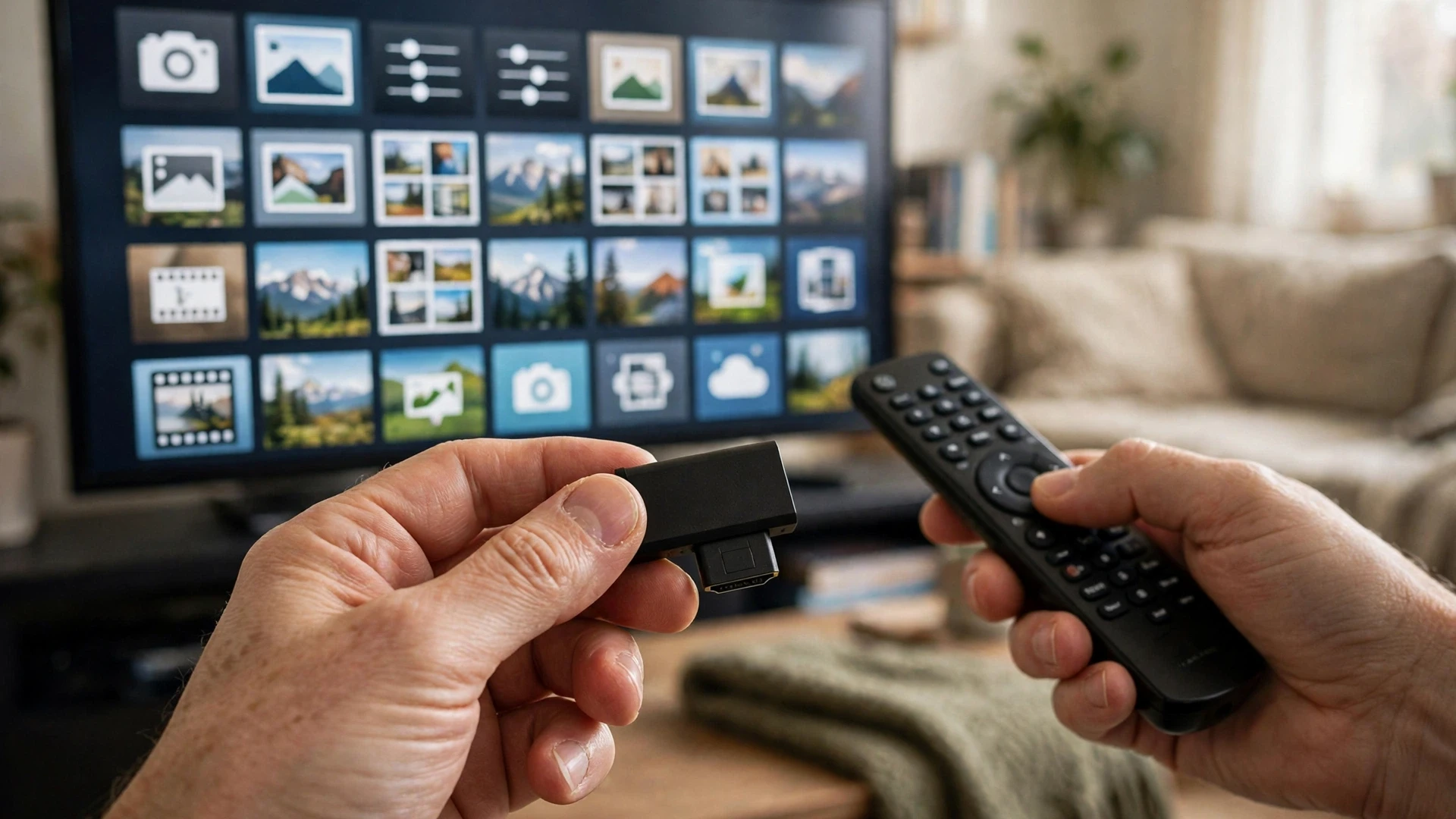
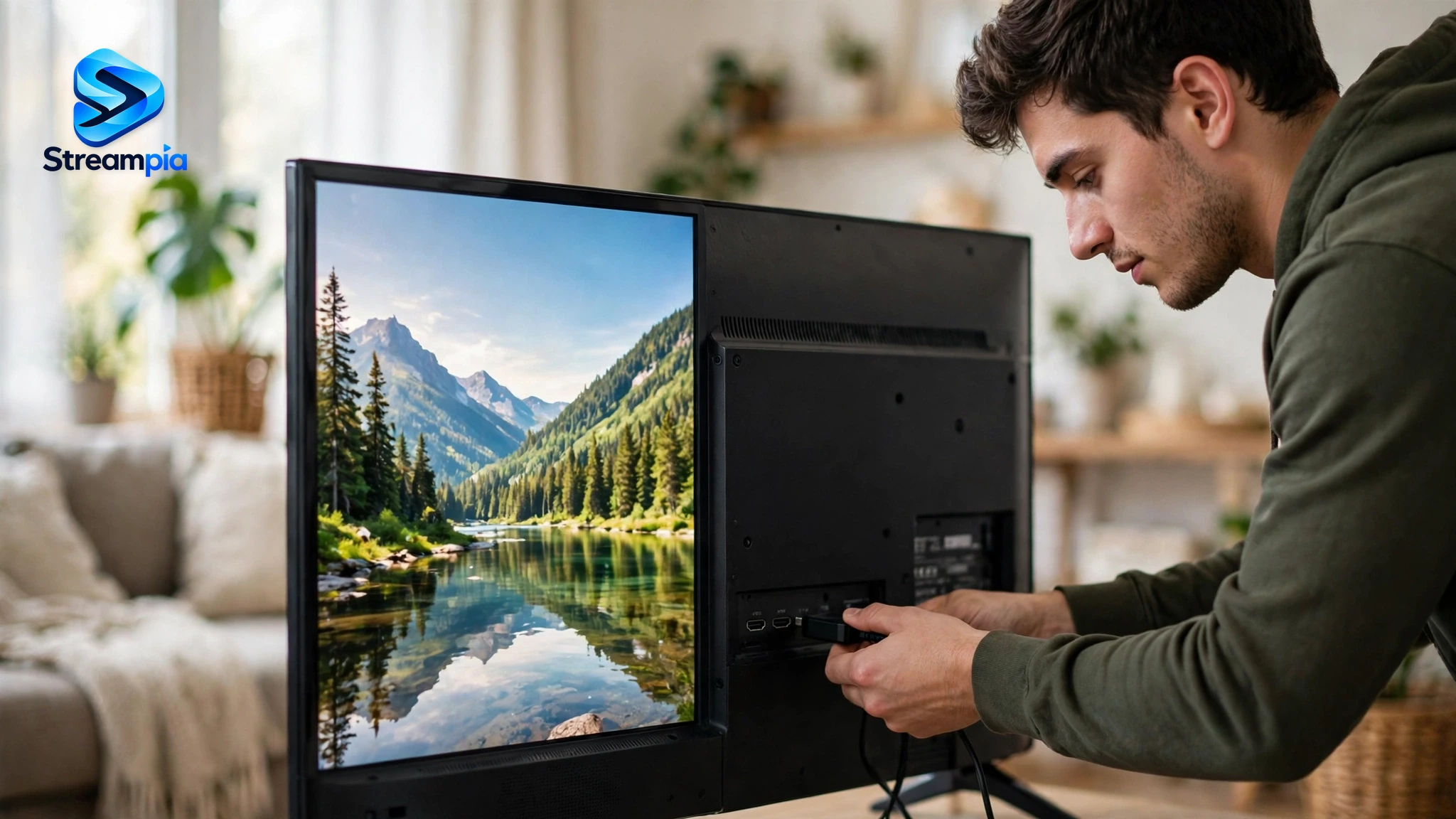
This is the most popular setup — and the one that trips people up, because the app is not in the Amazon Appstore. Here is the full route:
- From the Firestick home screen, go to Find > Search and install the free Downloader app.
- Before you open it, go to Settings > My Fire TV > Developer Options and turn on "Install Unknown Apps" for Downloader. On newer software, Developer Options is hidden under Settings > My Fire TV > About — press select seven times on the first item to reveal it.
- Open Downloader and enter the IPTV Smarters Pro download address from the official Smarters website — not a random link from a forum.
- Install the app, open it, and follow the Xtream Codes steps above.
Once installed, Smarters Pro behaves exactly like it does on any Android device.
Android TV, Google TV and Android Phones
Open the Google Play Store, search for "IPTV Smarters Pro", install it, and log in with your Xtream Codes details. The interface is the same on a phone and a TV.
iPhone, iPad and Apple TV
Search the App Store for "IPTV Smarters Pro". If it is not listed in your region, install Smarters Player Lite instead — the same app under a different name, and your Streampia login works in it exactly the same way. The Apple versions lack a few Android features, but live TV, films and the guide all work.
Samsung and LG Smart TVs
Open your TV's app store and search for IPTV Smarters Pro. Samsung's Tizen store and LG's webOS store both carry it on many recent models. If it is not listed for yours, use IBO Player Pro instead; your Streampia login works in it too.
Windows and Mac
Download the desktop version from the official Smarters website. It is handy if you watch on a laptop, or want to test your login on a computer before setting up the TV.
Xtream Codes Login vs M3U Playlist — Which Should You Use?
Smarters Pro gives you two ways to add your subscription:
- Xtream Codes API (recommended): enter a username, password and server URL, and the app loads live TV, films, series, catch-up and the guide together. This is what Streampia sends you.
- M3U playlist: paste a long playlist link into the app. It loads the same channels, but the guide may need a separate EPG link. Useful if your provider only supplies a playlist, or you want to combine several subscriptions in one app.
For most people, Xtream Codes is the better choice — one login, everything in one place.
Troubleshooting: When IPTV Smarters Pro Won't Work
Nearly every setup problem is one of four things.
"Login failed" or "Invalid username or password"
First, retype your server URL character by character — this is the culprit in most cases. Then check your username and password against your welcome message, watching for capital letters and for a "0" that is actually an "O". If it still fails, check your subscription is active, and contact us on WhatsApp via streampia.com — we can check your login from our side.
Channels load but won't play
This is usually your connection, not the app. Restart your router and your device, and if you are on Wi-Fi, try a wired Ethernet cable. Check your speed: 25 Mbps for smooth 4K, 10 Mbps for HD. If one channel fails while others play, its source may be briefly down; try again in a few minutes.
The programme guide (EPG) is empty
The EPG loads after the channel list, so give it a few minutes on first setup. If it is still blank, force-close the app and reopen it to trigger a fresh guide download. On Firestick, clearing the app cache (Settings > Applications > Manage Installed Applications > Clear Cache) also fixes a stuck guide.
The app crashes or freezes
Update the app, then restart your device. On Firestick, clear the cache as above and uninstall apps you no longer use — a full Firestick is a slow Firestick. If it keeps crashing on one device, try your login on your phone: if it works there, the problem is the device.
Frequently Asked Questions
Is IPTV Smarters Pro free?
Yes. The app is free on Android, Fire TV, iOS, Windows, Mac and many smart TVs. You still need a subscription from a provider such as Streampia to watch anything — the app itself contains no channels. Some versions offer a paid upgrade that removes ads.
Do I need a VPN to use IPTV Smarters Pro?
No. Smarters Pro works without a VPN, and Streampia does not require one. Some people use one for privacy; if you do, pick a fast server close to you, because a slow VPN is a common cause of buffering.
Why is my Xtream Codes login not working?
In most cases, the server URL is mistyped — check it character by character, including the port number. Next, check the username and password for capital letters and lookalike characters. If everything matches and it still fails, your subscription may have expired, or your provider may have changed the server address — ask support to verify your login.
Does IPTV Smarters Pro work on Firestick?
Yes — Smarters Pro Firestick setup is straightforward, and it is one of the best Firestick players. It is not in the Amazon Appstore, so install it with the free Downloader app, allow unknown apps for Downloader in Developer Options, then log in with your Xtream Codes details. The steps are in the Firestick section above.
Can I use one login on multiple devices?
That depends on your subscription, not the app. Smarters Pro lets you add the same login on as many devices as you like, but most providers limit how many can stream at once. Streampia plans include 1 connection, so one device streams at a time. If you need more, ask us on WhatsApp via streampia.com.
The Bottom Line
IPTV Smarters Pro is the easiest way to start watching IPTV: free, on every device, and five minutes from install to live TV. Install it, choose "Login with Xtream Codes API", enter the three details from your welcome message, and you are done.
No login yet? Try it free first. Streampia's 24-hour trial gives you the full service — 13,000+ live channels, 120,000+ movies and series, up to 4K, with 99.9% uptime — no card required. Plans start at £11.99 a month. Contact us on WhatsApp via streampia.com and we will send your login details straight away.
Try Streampia Free for 24 Hours
No card required — 13,000+ live channels and 120,000+ movies & shows in 4K.
Claim Free Trial on WhatsApp