IPTV Buffering? 9 Fixes That Actually Work
Nothing ruins a match like the picture freezing at the worst possible moment. If your IPTV keeps buffering, the good news is that the cause is usually simple.
This IPTV buffering fix guide works through the nine fixes that actually solve the problem, in the order you should try them: quickest
first. We will also explain how much internet speed you really need, and how to tell whether the problem is your setup or your provider.
Fix 1 — Test Your Internet Speed Properly
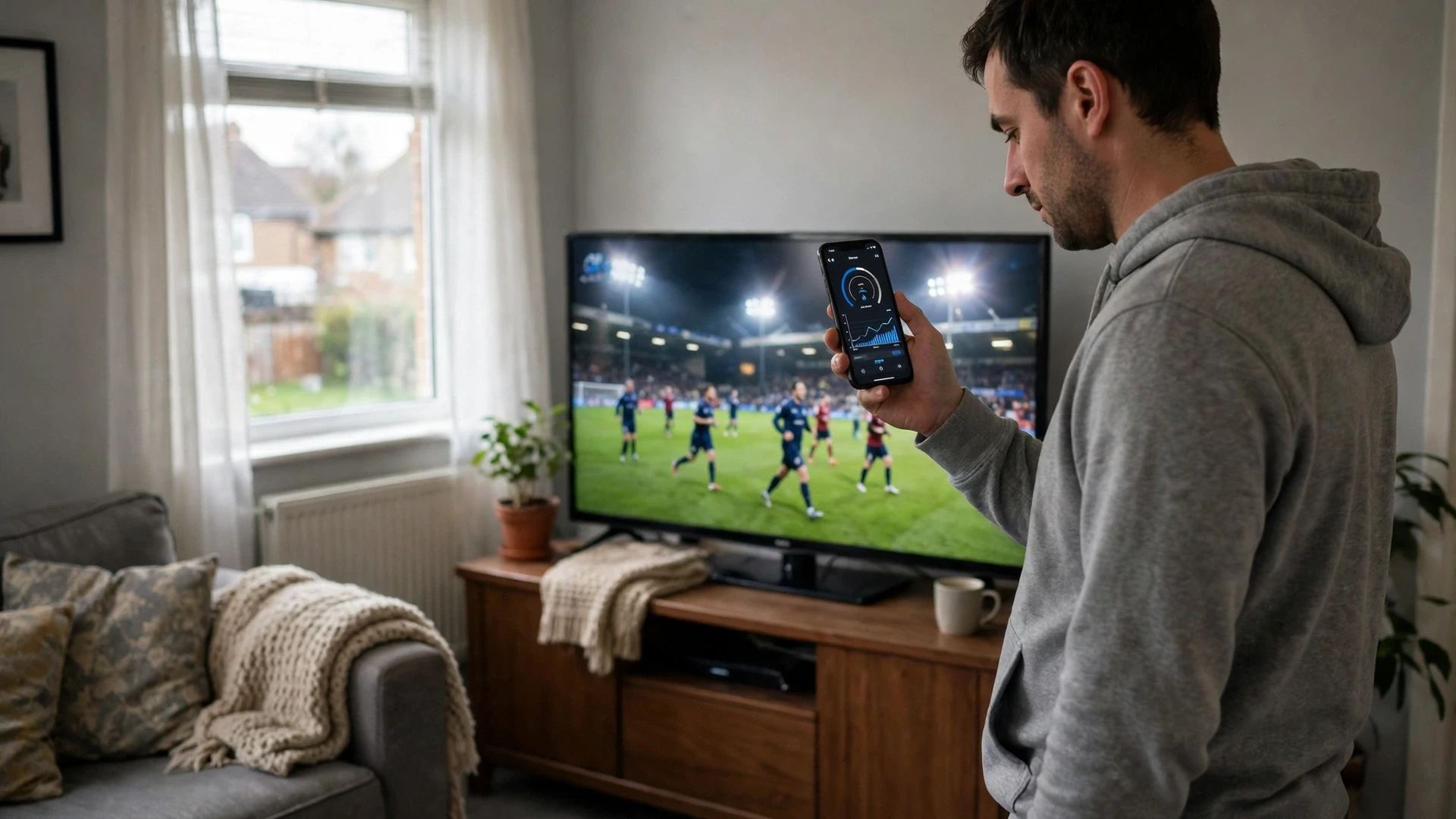
Before changing anything, measure what you actually have. Run a speed test on the same device you watch on — or at least on your phone standing next to the TV — using a site like speedtest.net.
What you need for smooth streaming:
- 4K: at least 25 Mbps, and ideally 30 Mbps or more
- Full HD (1080p): around 10 Mbps
- Standard HD (720p): around 5 Mbps
Speed is only half the story. Also watch the ping and jitter figures on the test: a connection that jumps between 40 Mbps and 5 Mbps will buffer even though the average looks fine. If your speed is well below what you pay for, restart your router first — unplug it for 30 seconds, plug it back in, and wait two minutes before testing again.
Fix 2 — Switch to a Wired Ethernet Connection
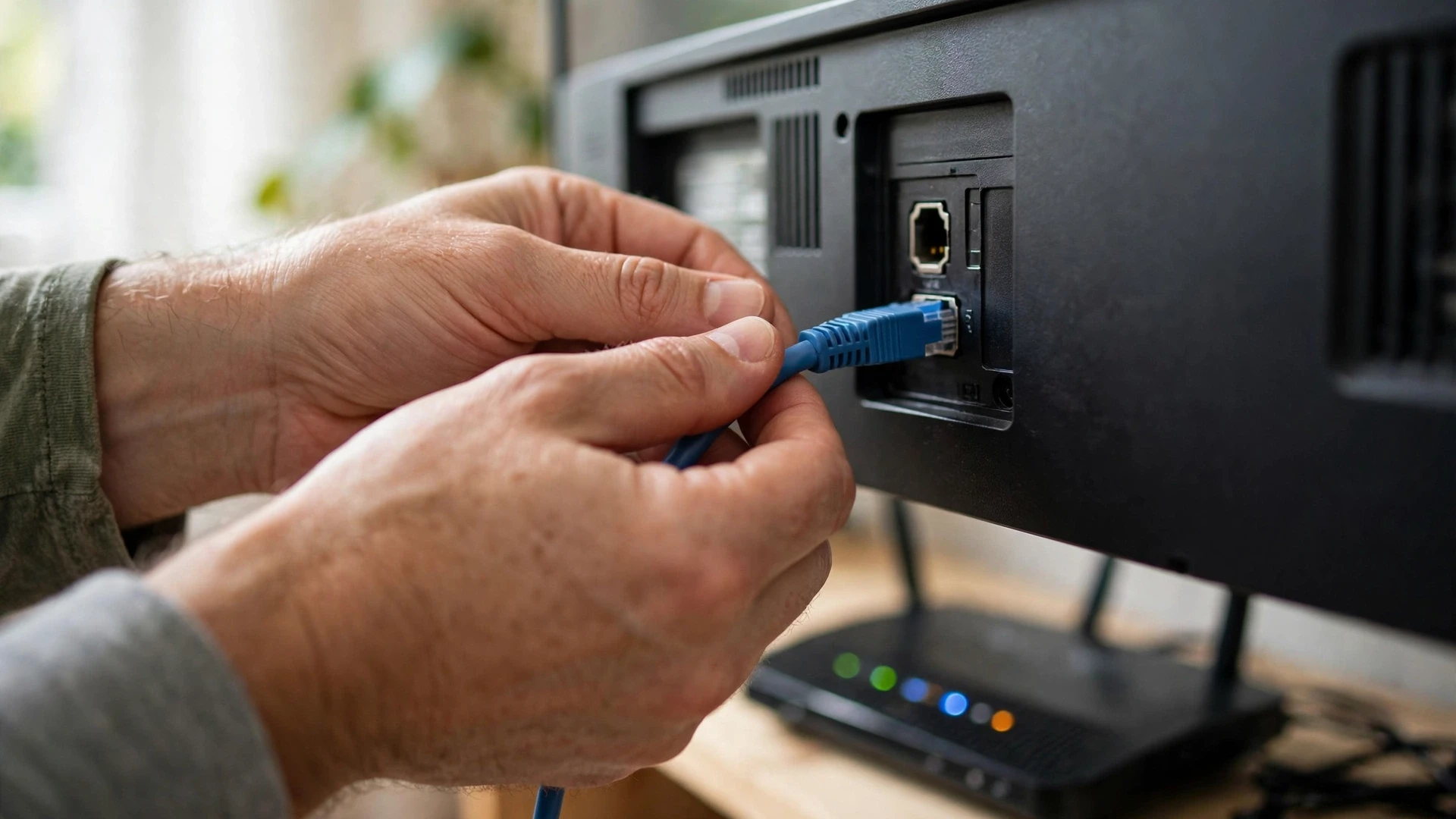
Wi-Fi is the single most common cause of IPTV buffering. Walls, floors, microwaves, neighbours' networks and even a fish tank can all weaken the signal between your router and your TV.
If your TV or Firestick is anywhere near your router, run an Ethernet cable. A wired connection is faster, steadier and immune to Wi-Fi interference — and it is the first thing support teams ask about for a reason. Firesticks need a cheap Ethernet adapter; most smart TVs and Android boxes have a port built in.
If a cable is genuinely impossible, move your router closer to the TV, or at least out of a cupboard and off the floor. A router hidden behind the TV cabinet is working at half strength.
Fix 3 — Move Closer to the Router or Improve Your Wi-Fi

If you must use Wi-Fi, make it as strong as possible:
- Use the 5 GHz band when your TV is in the same room as the router — it is faster and less crowded. Use 2.4 GHz only if the TV is far away, because it travels through walls better.
- Restart your router weekly. Routers are small computers; they get sluggish just like phones do.
- Reduce the load. If four people are streaming, gaming and video-calling at once, something will give. Pause a download while you watch the match.
Fix 4 — Lower the Stream Quality Temporarily
This is a diagnostic trick as much as a fix. If 4K buffers but 1080p plays smoothly, your connection is the bottleneck — not the service. Drop the quality one step and see if the picture holds.
Most players let you pick the stream quality per channel, or switch the whole app to a lower default. Watch a full programme at the lower setting: if it never buffers, you know the service is fine and the pipe is too narrow for 4K right now. Peak evening hours (7–11pm) are the hardest test, when every household in your street is streaming at once.
Fix 5 — Clear Your Player App's Cache
Apps store temporary data — thumbnails, programme guide entries, half-loaded streams — and over time that cache gets corrupted or simply too full. Clearing it is free, takes thirty seconds, and fixes a surprising number of playback problems.
On a Firestick: go to Settings > Applications > Manage Installed Applications, pick your IPTV player, and tap Clear Cache. Do not tap Clear Data — that wipes your login and playlists.
On Android TV: Settings > Apps > [your player] > Clear Cache. On a phone or tablet, the same option sits in the app settings. After clearing, force-stop the app, reopen it and let the channels reload. Give the programme guide a minute or two to come back.
Do this monthly and you will avoid a whole class of freezing and crashing problems.
Fix 6 — Restart Your Device and Close Background Apps
A Firestick or smart TV that has been on for weeks accumulates background apps, memory leaks and stale processes. A simple restart frees memory and kills whatever was hogging the processor in the background.
Restart properly — pull the power for ten seconds rather than just putting the TV on standby. On a Firestick, hold the Select and Play buttons together for a few seconds, or unplug it from the mains.
While you are at it, uninstall apps you never use. A Firestick with 200 MB of free space is a slow Firestick, and a slow Firestick buffers. Check your storage in Settings > My Fire TV > About > Storage and clear out anything you have not opened in months. Also close other apps before you start watching — streaming apps running in the background still use network and memory.
Fix 7 — Update Your Player App and Your Device
An old version of IPTV Smarters Pro, TiviMate or IBO Player can buffer on streams that a newer version handles perfectly. Player updates regularly include fixes for playback and buffering, so check for updates in your app store every month.
Update your device software too — Firestick, Android TV and smart TV firmware updates often include Wi-Fi and video playback improvements. On a Firestick: Settings > My Fire TV > About > Check for Updates.
If you are using TiviMate, our best IPTV apps of 2026 guide compares the main players and explains which one suits your device — switching players is sometimes the simplest cure for a stubborn buffering problem.
Fix 8 — Check Whether Your VPN Is Slowing You Down
A VPN adds a detour to every piece of data: your stream travels to the VPN server first, then to you. A slow or distant VPN server is a very common cause of IPTV buffering, and it is easy to test — turn the VPN off and try the same channel.
If the buffering stops, the VPN was the problem. If you want to keep using one, switch to a server in your own country, as close to you as possible, and use the fastest protocol your VPN app offers (usually WireGuard or IKEv2). Free VPNs are the worst offenders here — they are almost always overcrowded.
Streampia does not require a VPN, and most customers watch without one. If you do use one for privacy, a fast paid service on a nearby server should not cause noticeable buffering.
Fix 9 — Try Another Channel, Then Another Device
This is the test that tells you whether the problem is your setup or the service.
First, try a different channel — ideally a popular one like a main sports or news channel. If most channels play fine and only one buffers, that channel's source is having a problem, not your connection. Wait a few minutes and try it again; sources usually recover quickly.
Then try your login on a different device — your phone, for example. If it plays smoothly on your phone on the same Wi-Fi, the problem is the original device: its Wi-Fi chip, its cache, or its age. If it buffers on every device, the problem is your internet connection.
How Much Speed Do You Really Need?
The numbers in Fix 1 are minimums. In practice, you want headroom: if 4K needs 25 Mbps, aim for 35–40 Mbps at the TV, because other devices in the house share the connection. Remember that advertised broadband speed is not delivered speed — a "100 Mbps" package often delivers 60–70 Mbps at the TV over Wi-Fi — and speeds dip between 7pm and 11pm in many areas. If your speed test consistently shows less than half of what you pay for, raise it with your broadband provider before blaming your TV service.
When Buffering Is Not Your Fault
Sometimes you do everything right and a channel still buffers. A single channel source can be down or overloaded — common during huge live events, when thousands of viewers hit the same source at once. Other channels will play normally. Providers also occasionally restart servers for maintenance, which usually lasts minutes.
The pattern is the giveaway: if one channel buffers and everything else is fine, it is the source. If everything buffers on every device, it is your connection. If everything buffers on one device only, it is that device.
A Quick Buffering Checklist
Run through this in order next time the picture freezes: speed test on the device; restart the router and the device; try Ethernet instead of Wi-Fi; clear the player app's cache; lower the stream quality one step; turn the VPN off and test again; try another channel, then another device; update the player app and device software. Nine times out of ten, one of these steps solves it.
Frequently Asked Questions
Why does my IPTV keep freezing every few minutes?
The most common cause is an unstable Wi-Fi connection: the signal drops briefly, the player runs out of buffered data, and the picture freezes. Switch to Ethernet if you can, or move the router closer to the TV. If the freezing happens at the same time every evening, peak-time congestion on your broadband is the likely culprit — try a lower stream quality during those hours.
Why does IPTV buffer on Firestick but not on my phone?
The Firestick is almost always further from the router, on weaker Wi-Fi, with less free storage and a smaller processor. Clear the player app's cache, uninstall unused apps, restart the Firestick properly, and try the Ethernet adapter if your TV is near the router.
Does a VPN cause IPTV buffering?
It can. A VPN routes your stream through an extra server, and a slow, distant or overcrowded VPN server will cause buffering. Turn the VPN off to test. If the buffering stops, switch to a server in your own country and use the fastest protocol available. Streampia does not require a VPN.
What internet speed do I need for 4K IPTV?
At least 25 Mbps of stable download speed at the device, and ideally 30 Mbps or more to leave headroom. For Full HD you need around 10 Mbps, and for standard HD around 5 Mbps. Run the speed test on the device you watch on, not on a phone in another room — the number at the TV is the one that matters.
Is buffering my provider's fault or my internet?
Try another channel first: if most channels play fine and only one buffers, it is that channel's source. Then try another device on the same Wi-Fi: if it plays fine there, the first device is the problem. If every channel buffers on every device and your speed test looks healthy, contact your provider. Reach us on WhatsApp via streampia.com with your speed test result and we will check your connection.
The Bottom Line
IPTV buffering is almost always a connection or device problem, not a subscription problem — and the fix is usually one of the first three steps in this guide: test your speed, wire the connection, and clear the cache. Work through the checklist in order and you will find the cause in minutes.
Still stuck after trying everything? Your trial is the best way to test us properly. Streampia's free 24-hour trial gives you the full service — 13,000+ live channels, 120,000+ movies and series, up to 4K, with 99.9% uptime — no card required. Plans start at £11.99 a month, with 3 months at £29.99, 6 months at £63.99 and 12 months at £95.99. See the full options on our pricing page, or contact us on WhatsApp via streampia.com and we will help you get set up.
Try Streampia Free for 24 Hours
No card required — 13,000+ live channels and 120,000+ movies & shows in 4K.
Claim Free Trial on WhatsApp