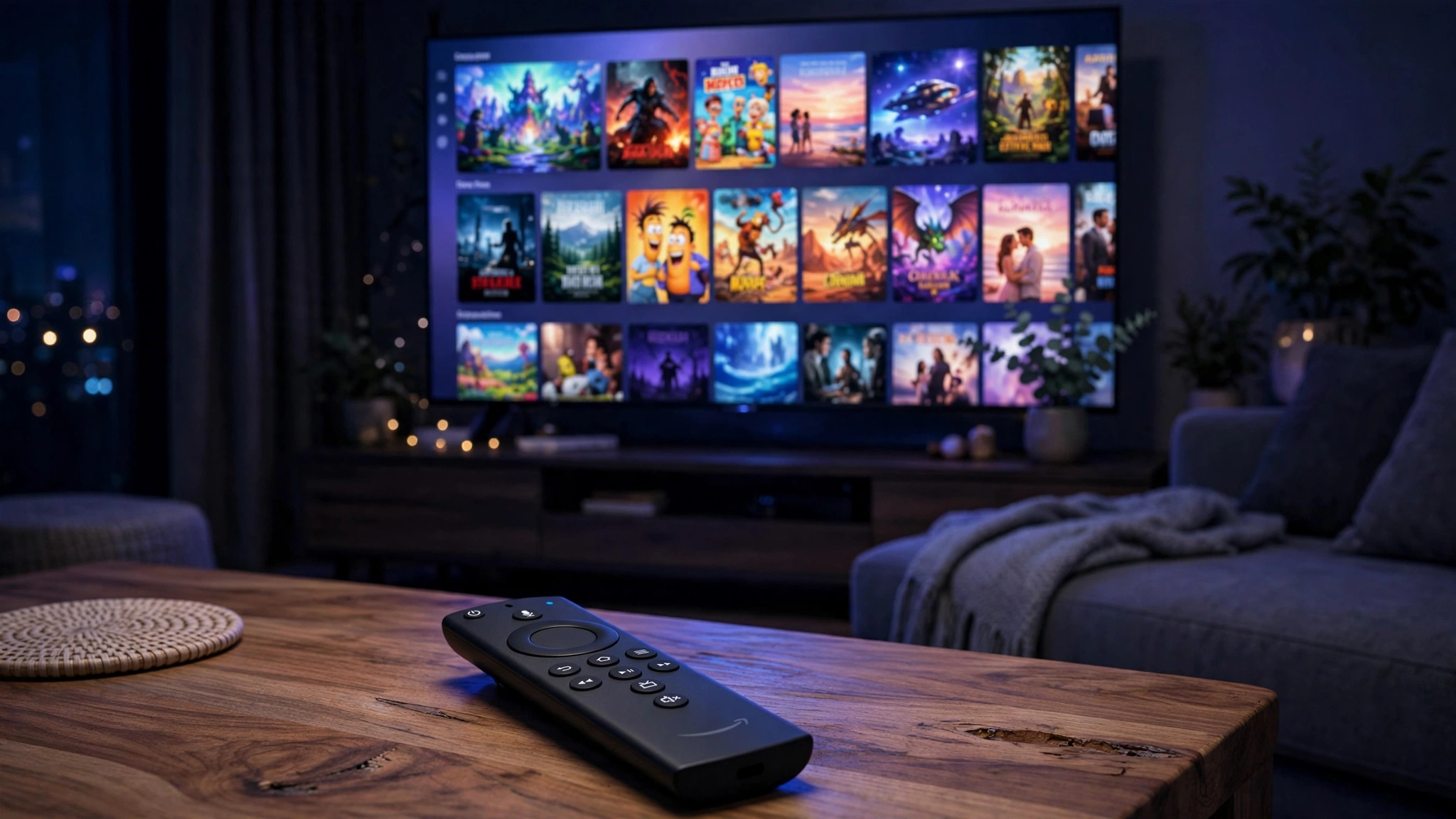
So You've Got a Firestick. Here's How to Actually Unlock It.
Let's be honest for a second. That Firestick plugged into your TV — the one showing you the same handful of apps every night — is capable of so much more than what you're seeing right now.
With the right setup, that little stick turns into a complete entertainment system: thousands of live TV channels from around the world, movies, full series libraries — all on your big screen, all in one place. And no, you don't need to be "good with technology" to do it.
I've walked hundreds of people through this exact process. It takes about ten minutes, and I'm going to hold your hand through every single step. Let's go.
What You'll Actually Need
Short list, I promise:
- Any Amazon Firestick — Lite, 4K, 4K Max, doesn't matter. They all work.
- Decent internet — around 15 Mbps for HD, 25+ for 4K. Most home connections are fine.
- A Streampia subscription — the moment you sign up, we send your login details straight to your WhatsApp or email. No waiting around.
- Ten minutes — and maybe a cup of chai.
Step 1: Let Your Firestick Install Outside Apps
Amazon locks things down by default, so first we open the door:
- From the home screen, open Settings (the little gear icon).
- Go to My Fire TV, then Developer Options.
- Switch ON both Apps from Unknown Sources and ADB Debugging.
- Can't see Developer Options? Go to Settings > My Fire TV > About, highlight Fire TV Stick and press the select button 7 times. It'll appear like magic.
Done? Good. That was the "hardest" part, and it wasn't hard at all.
Step 2: Grab the Downloader App
Downloader is the easiest way to get new apps onto a Firestick. It's free and it's in the official Amazon Appstore:
- Hit Search on the home screen and type Downloader.
- Install the orange Downloader app and open it.
- When it asks for permission to install unknown apps, say yes.
Step 3: Pick Your Player — TiviMate or IPTV Smarters
Here's where people get confused, so let me keep it simple. You need a player app — think of it like a TV remote that knows how to talk to your subscription. Two names dominate, and you can't really go wrong:
TiviMate — my personal recommendation
This is the one I suggest to friends. The interface is beautiful, channel zapping is instant, and the TV guide looks like something from the future. There's a small one-time premium upgrade that unlocks everything — worth every penny if you watch daily.
- Open Downloader, enter the official TiviMate download address, and install it.
IPTV Smarters Pro — the beginner-friendly option
If TiviMate sounds like too much, Smarters is simpler and still excellent. Same great streams, less to learn.
- In Downloader, enter the IPTV Smarters Pro download address and install it.
- On the welcome screen choose Login with Xtream Codes API.
Step 4: Plug In Your Streampia Details (The Fun Part)
When you subscribe to Streampia, we send you three things: a server URL, a username, and a password. They usually land in your WhatsApp within minutes of signing up.
- In TiviMate: Settings > Playlists > Add Playlist > Xtream Codes — paste in your three details.
- In IPTV Smarters: choose Xtream Codes API login and enter the same three details.
- Prefer a playlist file? Use the M3U URL option instead — same result.
- Give it a minute while everything loads. Channels, movies, series… and just like that, you're done.
Seriously — that's it. You're watching now.
Step 5: Don't Skip the TV Guide
A proper program guide is what separates "some app" from "this feels like real TV." Most players pull it in automatically, but double-check: in TiviMate go to Settings > EPG and make sure updates are set to every 24 hours. Future-you will thank present-you.
The Stuff Nobody Tells You (But Should)
Okay, setup's done. Now here's what separates a good experience from a great one — the stuff I tell every single person:
- Get a VPN. Really. I'm not just saying that. Some internet providers quietly slow down streaming traffic in the evenings. A VPN stops that cold — and keeps your watching private. It's the single biggest quality upgrade most people can make.
- Wired beats Wi-Fi. If you can plug in an Ethernet adapter, do it. Streams get dramatically more stable.
- Clear the cache weekly. Settings > Applications > your player > Clear Cache. Takes ten seconds, keeps everything snappy.
- Restart the stick sometimes. Unplug it for 30 seconds once a week. Fixes 90% of weird little glitches.
- Keep your player updated. New versions fix bugs and add features — always worth it.
When Something Goes Wrong (It Happens to Everyone)
Don't panic. Here's the fix for the usual suspects:
Buffering or freezing
Nine times out of ten, this is your internet speed or your provider throttling you. Run a speed test, try a VPN, and if you're on 4K, drop to Full HD and see if it clears up.
"Login failed"
Copy-paste your details instead of typing them — typos are the #1 cause. If they're definitely right, your subscription might have expired. Message us and we'll sort it out in minutes.
TV guide won't load
Trigger a manual EPG update in settings. Still nothing? Clear the app's data (not just cache) and log back in — forces a completely fresh download.
App crashes on launch
Reinstall the latest version through Downloader, and check your Firestick has the latest system update (Settings > My Fire TV > About > Check for Updates).
Questions I Get Asked All the Time
Is IPTV on Firestick legal?
The technology itself is 100% legal — it's just a way of delivering TV over the internet. What matters is where the streams come from, which is why you should always go with a proper, reputable provider. Like us.
Do I really need a VPN?
Need? No. Should you? Honestly, yes. Privacy plus no throttling — it's a no-brainer for anyone who streams daily.
TiviMate or IPTV Smarters — which one?
TiviMate if you want the best interface and don't mind learning a few menus. IPTV Smarters if you want dead simple. Both work flawlessly with Streampia.
How fast does my internet need to be?
15 Mbps for HD, 25+ for 4K. But here's the secret: stable matters more than fast. A steady 20 Mbps beats a jumpy 100 Mbps every time.
Can I use it on more than one TV?
Yes — we offer multi-connection plans so the whole family can watch at once. Just ask us on WhatsApp and we'll set you up.
New channels aren't showing up — why?
Just refresh your playlist (in TiviMate: long-press the playlist, hit Refresh). New additions pop right in.
Here's the Honest Truth
Look — there are a lot of IPTV providers out there, and a lot of them will take your money and disappear when something breaks. That's exactly why we built Streampia differently.
When you subscribe with us, you get:
- Thousands of live channels — sports, movies, news, kids, international, everything.
- A massive movies & series library that actually gets updated.
- Real human support on WhatsApp — not a bot, not a ticket black hole. Message us and a person replies.
- Instant setup — your login details arrive within minutes, and this very guide gets you watching tonight.
So here's my suggestion: stop scrolling, start watching. Grab a plan below — and if you have any question at all, just message us. We answer fast, and we actually enjoy helping.
👉 View Streampia Plans & Pricing
💬 Chat With Us Directly on WhatsApp — ask anything, we'll reply personally.
One Last Thing
Ten minutes ago your Firestick was just another streaming stick. Now it's a complete entertainment system. Pour that chai, pick something good, and enjoy the show. And if you ever get stuck — you know where to find us. 📺